




lesson 3.2.4 types of storage
Comparing Magnetic, Optical, and Solid-State Drives

Welcome back, Tech Historians and Hardware Engineers! Today, we are travelling through time to discover how humans have saved their most precious data—from carving symbols into stone tablets to storing gigabytes of video on invisible 'Clouds' and even experimenting with microscopic DNA! We'll look at the spinning magnetic disks and laser-read optical drives of the past, right up to the lightning-fast Solid-State Drives of today. Get ready to build a timeline of tech history and evaluate which storage device is the ultimate champion for our modern digital lives!
Learning Outcomes
The Building Blocks (Factual Knowledge)
The Connections and Theories (Conceptual Knowledge)
The Skills and Methods (Procedural Outcomes)
Recall the three main types of secondary storage: magnetic, optical, and solid-state.
Describe the basic physical characteristics of how data is stored on HDDs, CDs, and SSDs.
Analyse the concept of Cloud Storage and identify where the physical data actually resides.
The Connections and Theories (Conceptual Knowledge)
Describe the evolution of data storage from analogue mediums to contemporary digital and biological formats.
Analyse the trade-offs between capacity, speed, portability, durability, and cost when selecting a storage device.
Evaluate the advantages and disadvantages of relying on Cloud Storage compared to local physical storage.
The Skills and Methods (Procedural Outcomes)
Apply knowledge of storage characteristics to select the most appropriate device for a given real-world scenario.
Analyse historical and contemporary storage technologies to construct an accurate chronological timeline.
Evaluate future storage technologies, such as DNA storage, against current solid-state limitations.
Digital Skill Focus: Today, you will organise and structure chronological data effectively to create a clear, communicative digital timeline.
From Stone to Silicon: A Tech Historian's Journey

Today, we use three main categories of physical storage inside our computers:

Hard Disk Drives or HDDs
Uses spinning metal platters and tiny magnets to store data. They hold a massive amount of data and are very cheap, but they have moving parts so they break easily if dropped!

CDs, DVDs, and Blu-rays
Uses a laser to read tiny bumps (called pits and lands) on a plastic disc. They are cheap and highly portable, but quite slow and easily scratched.

SSDs and USB Flash Drives
Uses electronic circuits to trap electrons. There are zero moving parts, making them incredibly fast and durable, but they are more expensive per gigabyte!

Task 1 The Tech Historian's Timeline
It is time to put on your Tech Historian hat! How did we get from carving in stone to saving 4K videos on a microchip?
1
Get Organised!
Work in pairs or small groups. Assign the following roles:
The Coordinator: makes sure everyone is working on something.
The Cutter and Sticker: cuts and sticks things where they are told to.
The Researcher: finds things out and adds them to the timeline.
Grab a piece of coloured paper from your teacher/supply cupboard.
Grab a pair of scissors and a glue stick.
Make sure you have something to write with.
Switch your brain on.
Your teacher will give you a copy of a resource sheet with the names and pictures of storage devices. The Cutter and Sticker is in charge of cutting this resource sheet up into 9 little strips of techy loveliness.
2
Get set up!
1
Make sure your coloured paper is in portrait orientation.
2
Add a suitable title to the top of the page.
3
Draw a thick line down the middle of the paper. This is your timeline. The top is 'the past', the bottom is 'the future'.
3
Sort the Tech!
Place the tech devices from the resource sheet in order, starting with the oldest at the top and the newest at the bottom. Arrange them and stick them on your timeline.
4
Categorise!
Label each item on your timeline as either...
Analogue (physical representation of data)
Digital (stored as binary 1s and 0s).
If you aren't sure, get The Researcher to find out for you.
5
Faster Workers
If you are finished super quick, carry out some quick research to find out the theoretical capacity (think back to last lesson) of these media. Add this to your timeline.
Outcome: A chronological timeline mapping the evolution of data storage mediums.

Cloud Storage: Is it really in the sky?
We hear about saving photos to the "Cloud" all the time. But what is it? The truth is: There is no 'cloud', your stuff is just on someone else's computer!
When you save a file to Google Drive, iCloud, or OneDrive, your data travels over the Internet and is saved onto physical Hard Disk Drives or Solid-State Drives stored in giant, warehouse-sized data centres.
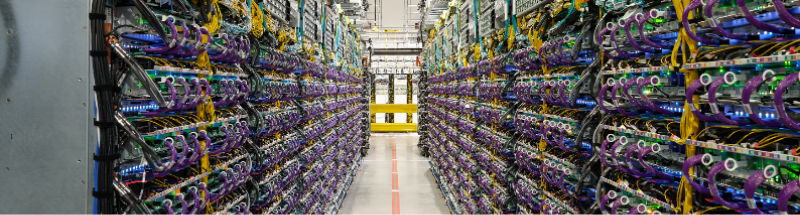
A Google Data Center (Click for more)
Advantages of 'The Cloud'
You can access your files from anywhere in the world on any device.
You don't have to carry a physical hard drive around with you.
The data centre handles backups and security for you.
Disadvantages of 'The Cloud'
You must have an internet connection to access your files.
If the company goes out of business, or their servers go down, you lose access.
Hackers might target these massive data centres.

Task 2 The Hardware Engineer's Recommendation
Hardware Engineers don't just know how computers work; they know how to pick the perfect parts for a client! Different jobs require different types of storage, but before we help our clients, we need to understand a newer type of storage: The Cloud.
1
Research the Cloud.
We hear about saving photos to the "Cloud" all the time, but what is it? Use the AI prompt below to find out. Simply click the prompt and read the response carefully so you learn exactly how it works and where the data actually goes!
Act as a supportive, expert computer science tutor. Explain the concept of "Cloud Storage" and where the data actually goes in 100 words or less. Limit your response to 2 short paragraphs suitable for a 11-year-old KS3 student. Include 1 real-world analogy. Do not write an essay, keep the tone encouraging, and do not ask any follow-up questions.
2
Get Organised!
Now that you understand (🤔) Magnetic, Optical, Solid-State, and Cloud storage, it is time to advise your clients. Download and open the worksheet named the-hardware-engineers-recommendation.docx.
3
Evaluate the Needs!
Read the four client profiles on your worksheet:
Client A

Client B

Client C

Client D

A wildlife photographer working in a damp, bumpy rainforest who needs to save high-quality photos quickly.
A school headteacher who needs to backup 100,000 student files overnight as cheaply as possible.
A musician who wants to sell physical copies of their new album at a concert for £5 each.
A team of software developers living in five different countries who all need to work on the exact same project files at the exact same time.
4
Make Your Recommendation!
For each client on the worksheet, choose the best storage type: Magnetic HDD, Optical Disc, Solid-State Drive, or Cloud Storage.
Write one sentence for each justifying why your choice is the best based on speed, cost, durability, or capacity.
5
Finish up
If you have time, complete the faster workers task, then Print your document.
Outcome: A completed and printed worksheet containing four justified hardware recommendations based on user requirements and AI research.
Contemporary Storage: The Future is in your DNA
As we generate more and more data (think of all those TikToks and YouTube videos!), we are running out of physical space to build data centres for Cloud Storage. Hardware Engineers and Scientists are now looking at biology for the answer!
DNA Data Storage is a contemporary, experimental technology that uses the exact same molecules that store your genetic code to store digital 1s and 0s. DNA is incredibly dense—you could store all the data on the entire internet in a space the size of a shoebox! It is also incredibly durable, lasting thousands of years (which is how we can still read the DNA of woolly mammoths).
While it is currently too slow and expensive to use in your home computer, the future of computer storage might look less like a microchip and more like a test tube!
Search Google for: How close is DNA data storage?

Out of Lesson Learning


Last modified: March 8th, 2026

















