




lesson 3.15.6 user management
Who's the boss? Learn how admin vs standard user accounts keep your computer secure.
Ever tried to install a game at school and got a 'permission denied' error? That wasn't a glitch; it was the OS doing its job! Today we're looking at User Management, the OS's bouncer, deciding who gets into the VIP area of your computer and what they're allowed to do. This is a vital skill for any future Digital Protector or System Administrator!
Learning Outcomes
The Building Blocks (Factual Knowledge)
Recall that user management is a core function of the OS.
Describe the difference between an Administrator and a Standard User account.
The Connections and Theories (Conceptual Knowledge)
Analyse why different permission levels are needed to maintain system security.
Evaluate the risks of always using an administrator account for everyday tasks.
The Skills and Methods (Procedural Outcomes)
Apply knowledge of permissions to identify who can read, write, or execute a given file.
Digital Skill Focus: You will customise basic operating system settings to understand how user accounts and permissions are managed.
The Digital Bouncer: User Accounts
The Operating System doesn't just manage software; it manages people too! To keep your computer secure and stable, the OS uses different user accounts, each with its own level of power. Think of it like a VIP nightclub: not everyone gets access to every area.
There are two main types of accounts:
Administrator: This is the 'owner' or 'landlord' of the computer. An admin has the master key and can do absolutely anything: install new software, change critical system settings, add new users, and access everyone's files. It is a very powerful account that should be used with great care!
Standard User: This is the 'tenant' account, designed for everyday use. A standard user can run applications that are already installed and manage their own personal files, but they cannot install new software or make changes that would affect the whole system or other users. When you try to install a game at school and a pop-up asks for a password, that's the OS stopping a Standard User and asking for an Administrator to approve the action.
Using a Standard User account for daily tasks is much safer. If you accidentally download a virus, its power is limited to your account only; it can't damage the core operating system!

Boil this section down to exactly three bullet points. What are the absolute, unmissable facts you need to take away today?
The Permission Slips: Access Rights
So, what are these different levels of power? The OS controls what users can do with files and folders using a set of rules called permissions or access rights. Every file on your computer has a list attached to it that tells the OS who is allowed to do what.
The three most important permissions are:
Read: This gives you permission to open and view a file. It's like being allowed to read a book from the library, but you can't write in it.
Write: This gives you permission to change or modify a file. This is like being able to write your own notes in the margin of the book or even tear a page out! You can also create new files in a folder if you have write permission.
Execute: This permission is for programs (files ending in .exe on Windows). It gives you permission to run the application. It's like being allowed to follow the instructions in a recipe book to actually bake the cake.
When you try to open a file, the OS checks your user account against the file's permission list. If you have 'Read' permission, it lets you in. If you don't, you get an "Access Denied" error message. This system is crucial for security, especially on a network. It stops students from reading exam papers or other people from deleting your homework!
Turn these words into pictures! Draw 3 small doodles, icons, or emojis that sum up the main ideas that you've read. You don't need to be an artist - making it visual helps your brain remember!

Task The Permission Puzzle
You are the new System Administrator for a school! Your first job is to set up the permissions for the network to make sure it's secure. You need to decide who gets access to what.
1
Get Organised!
Open your presentation software and create a new, single slide.
Give it the title: Network Security Permissions Matrix.
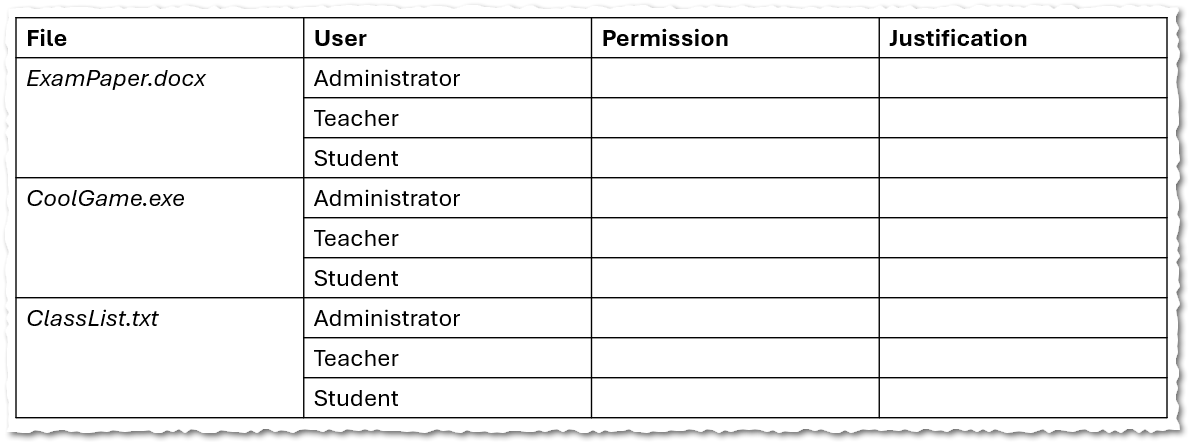
CHALLENGE: Create the following table...
🤫 Struggling?
Insert > Table > "4 x 10"
Merge cells A2:A4
Merge cells A5:A7
Merge cells A8:A10
Fill in the headings and the filenames and the users.
2
The Scenario
As you've seen, there are three files on the server:
ExamPaper.docxCoolGame.exeClassList.txtHere are the users on the network:
The Administrator (you!)
The Teacher
The Student
3
Solve the Puzzle
Fill in your table. For each file, you need to decide what permissions each of the three users should have. You might grant 'Read', 'Write', 'Execute', a combination (like 'Read & Execute'), or no permissions at all!
The most important part is the Justification column. You must explain why you made that choice. For example: "A student should have no permissions for the exam paper file because they must not see it before the test."
4
AI Research
Need some help justifying your choices? Use this AI prompt to get some expert advice.

You are a cybersecurity expert. Explain to a 13-year-old why a student account should have 'read-only' access to a shared homework file, while a teacher account needs 'write' access. Maximum 100 words. Keep it simple and use an analogy. NO intro, NO outro, NO deviation from the topic, NO follow-up questions.
Outcome: You will have a completed permissions matrix that clearly explains how to secure a school network using access rights.



Hungry for more?
Parental Controls: Research how the user account features in Windows or macOS are used to create 'child' accounts with web filtering and screen time limits. Start your research here.
The Linux Bouncer: In the world of Linux and macOS, the command `chmod` is used to change file permissions. Explore this search to see how professionals manage permissions from the Command Line!
The Super User: Find out what the special 'root' or 'superuser' account is on Linux and macOS, and why it's even more powerful (and dangerous!) than a normal Administrator account.
Out of Lesson Learning


Last modified: June 12th, 2026

















