


python asteroids
Build a classic game of asteroids using Python Turtle

turtle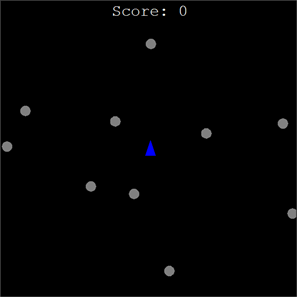
Classic Asteroids... but you can't play it here...
0
Get ready to code!
1
Open up Thonny
2
You should get a blank script editor and output window. If not, create a new file from the File menu.
3
Organise your workspace.
1
Setting up the Game Screen
Before we can draw any shapes or move any pieces, we need a blank canvas to work with. This step is designed to initialise the game window, set its size, give it a background colour, and title it. We also use a special command called
tracer(0)turtleimport turtle
import time
import random
import math
wn = turtle.Screen()
wn.title("Asteroids - The Computing Café")
wn.bgcolor("black")
wn.setup(width=600, height=600)
wn.tracer(0)
# Next: 2. Creating the Spaceship
2
Creating the Spaceship
Now we create the player's spaceship. In the
turtledxdyship_shape = ((-10, -10), (0, 20), (10, -10), (-10, -10))
wn.register_shape("ship", ship_shape)
player = turtle.Turtle()
player.speed(0)
player.shape("ship")
player.color("blue")
player.penup()
player.goto(0, 0)
player.setheading(90)
player.dx = 0
player.dy = 0
# Next: 3. Spawning the Asteroids
3
Spawning the Asteroids
What's a game of Asteroids without asteroids? We will use a loop to create several of them. Each asteroid is a turtle with a "circle" shape. We'll give each one a random starting position and a random direction and speed of travel. To keep track of all of them, we'll store them in a list called
asteroidsasteroids = []
for _ in range(10):
asteroid = turtle.Turtle()
asteroid.speed(0)
asteroid.shape("circle")
asteroid.color("grey")
asteroid.penup()
asteroid.goto(random.randint(-290, 290), random.randint(-290, 290))
asteroid.dx = random.uniform(-1, 1)
asteroid.dy = random.uniform(-1, 1)
asteroids.append(asteroid)
# Next: 4. Preparing the Ammunition
4
Preparing the Ammunition
Our ship needs to be able to shoot! We will create an empty list to hold all the laser bullets that the player fires. Unlike the player and the asteroids, which exist at the start of the game, bullets will be created one by one every time the player presses the fire key. This list will help us manage all of them at once.
bullets = []

# Next: 5. The Scoreboard
5
The Scoreboard
We need a way to show the player their score and other messages. To do this, we create another turtle object. We don't want to see this turtle's shape, only the text it writes. We will hide the turtle, move it to the top of the screen, and use it to display the starting score.
score = 0
pen = turtle.Turtle()
pen.speed(0)
pen.color("white")
pen.penup()
pen.hideturtle()
pen.goto(0, 260)
pen.write("Score: 0", align="center", font=("Courier", 24, "normal"))

# Next: 6. Adding Player Controls
6
Adding Player Controls
You need to be able to interact with the game! We define four functions: one to turn left, one to turn right, one to apply thrust to move forward, and one to fire a bullet. Applying thrust uses a little bit of maths to convert the ship's angle into horizontal (
dxdydef turn_left():
player.left(20)
def turn_right():
player.right(20)
def increase_thrust():
angle = math.radians(player.heading())
player.dx += math.cos(angle) * 0.2
player.dy += math.sin(angle) * 0.2
def fire_bullet():
bullet = turtle.Turtle()
bullet.speed(0)
bullet.shape("circle")
bullet.color("yellow")
bullet.shapesize(stretch_wid=0.2, stretch_len=0.2)
bullet.penup()
bullet.goto(player.xcor(), player.ycor())
bullet.setheading(player.heading())
bullet.dx = math.cos(math.radians(bullet.heading())) * 5
bullet.dy = math.sin(math.radians(bullet.heading())) * 5
bullets.append(bullet)
wn.listen()
wn.onkeypress(turn_left, "Left")
wn.onkeypress(turn_right, "Right")
wn.onkeypress(increase_thrust, "Up")
wn.onkeypress(fire_bullet, "space")
# Next: 7. The Main Game Loop & Wrapping Space
7
The Main Game Loop & Wrapping Space
This is the engine of your game. The
while True:time.sleepwhile True:
wn.update()
time.sleep(0.01)
player.setx(player.xcor() + player.dx)
player.sety(player.ycor() + player.dy)
if player.xcor() > 300: player.setx(-300)
if player.xcor() < -300: player.setx(300)
if player.ycor() > 300: player.sety(-300)
if player.ycor() < -300: player.sety(300)
for asteroid in asteroids:
asteroid.setx(asteroid.xcor() + asteroid.dx)
asteroid.sety(asteroid.ycor() + asteroid.dy)
if asteroid.xcor() > 300: asteroid.setx(-300)
if asteroid.xcor() < -300: asteroid.setx(300)
if asteroid.ycor() > 300: asteroid.sety(-300)
if asteroid.ycor() < -300: asteroid.sety(300)
for bullet in bullets[:]:
bullet.setx(bullet.xcor() + bullet.dx)
bullet.sety(bullet.ycor() + bullet.dy)
if bullet.xcor() > 300 or bullet.xcor() < -300 or bullet.ycor() > 300 or bullet.ycor() < -300:
bullets.remove(bullet)
bullet.hideturtle()
# Next: 8. Collision Detection
8
Collision Detection
Finally, we need to program what happens when objects hit each other. The computer doesn't automatically know when two shapes touch; we have to tell it to check the distance between them. Important: This code belongs inside the
while True: for asteroid in asteroids[:]:
if player.distance(asteroid) < 20:
player.hideturtle()
asteroid.hideturtle()
pen.goto(0, 0)
pen.write("GAME OVER", align="center", font=("Courier", 36, "normal"))
break
for bullet in bullets[:]:
for asteroid in asteroids[:]:
if bullet.distance(asteroid) < 20:
bullets.remove(bullet)
asteroids.remove(asteroid)
bullet.hideturtle()
asteroid.hideturtle()
score += 10
pen.clear()
pen.write(f"Score: {score}", align="center", font=("Courier", 24, "normal"))
break
# ...and we're done!
USE - MODIFY - CREATE
Fly around the screen, dodge the asteroids, and shoot them to score points. See how high you can get your score before you crash!
USE - MODIFY - CREATE
1
A New Coat of Paint
Change the look of your game by altering the colours to match your own style.
Find the line that sets the background colour:
wn.bgcolor("black")Try changing "black" to "navy" or "#000020".
Locate the player and asteroid colour settings:
player.color("blue")asteroid.color("grey")Pick your favourite colours and swap them in!
2
Adjust Ship Handling
Is the ship too fast or too slow to control? You can change how it handles.
Find the functions
turn_left()turn_right()201030In the
increase_thrust()0.20.43
Asteroid Field Density
You can tweak how dangerous space is by changing the number and speed of the asteroids.
At the start of the asteroid creation code, find
for _ in range(10):10520In the same section, find where
dxdyrandom.uniform(-1, 1)random.uniform(-2, 2)4
Weapon Power
Change how fast your laser bullets travel.
Inside the
fire_bullet()dxdyChange the speed multiplier from
5105
Customise the Scoreboard
Make the game interface uniquely yours.
Locate the text written to the screen by the
penChange the score message from
f"Score: {score}"f"Points: {score}"Alter the font, size, and style to your liking.
USE - MODIFY - CREATE

1
Multiple Lives
Create a lives variable set to 3 and display it on the screen with your score.
Modify the player-asteroid collision code so that it subtracts a life instead of ending the game. Reset the player's position and speed to the centre of the screen.
When lives reach 0, clear the screen and display the "Game Over" message.
2
Splitting Asteroids
This is a classic Asteroids feature! Modify the bullet-asteroid collision code.
When a normal-sized asteroid is hit, instead of just disappearing, have it create two new, smaller asteroids.
You will need to give these new asteroids slightly different
dxdyasteroid.shapesize()3
Hyperspace Jump
Add a new function called
hyperspace_jump()This function should instantly move the player to a random
(x, y)Link this function to a key, for example, the "Down" arrow, so the player can use it to escape a dangerous situation. Be careful, you might jump right on top of another asteroid!
4
Inertial Dampening
Real spaceships don't stop instantly. Add a small amount of "drag" or "friction" to the ship's movement.
Inside the main game loop, slightly reduce
player.dxplayer.dyplayer.dx *= 0.995
Add Sound Effects
Depending on your operating system, research how to import the
winsoundosTrigger a "pew" sound when a bullet is fired and an "explosion" sound when an asteroid is destroyed.

Last modified: July 1st, 2026