




lesson 3.15.4 file management
Master file management in this hands-on KS3 lesson. Learn about hierarchical directories, metadata, and how the OS keeps your data logically organised!
Welcome back to the digital kitchen! Today, we are looking at the Operating System's filing cabinets. Imagine having thousands of homework sheets scattered randomly all over your bedroom floor - it would be completely impossible to find anything! Your computer stores millions of files, and without the OS acting as a super-organised librarian, it would be complete chaos. Today, you are going to learn how to master file management. This is a crucial skill whether you want to be a System Administrator organising thousands of secure user accounts, or a Game Developer keeping track of thousands of character graphics, scripts, and sound effects!
Learning Outcomes
The Building Blocks (Factual Knowledge)
Recall that file management is one of the five core responsibilities of an operating system.
Describe the features of a hierarchical directory structure and how it resembles a tree of nested folders.
Identify the purpose of file extensions and metadata in identifying and classifying files.
The Connections and Theories (Conceptual Knowledge)
Describe how the operating system abstracts the complex physical storage on a hard drive into a logical, easy-to-understand folder structure.
Analyse the importance of metadata (data about data) in helping the OS and the user manage and search for files effectively.
Evaluate the benefits of maintaining a logical data organisation system for long-term project management and efficiency.
The Skills and Methods (Procedural Outcomes)
Apply principles of logical data organisation to plan a suitable file structure for a given scenario.
Create a nested folder structure by navigating a hierarchical file system using a Graphical User Interface (GUI) file explorer.
Execute basic file management operations including moving, copying, renaming, and deleting files and folders.
Digital Skill Focus: Use a graphical file explorer to successfully create, move, copy, and delete nested folders and files, applying principles of logical data organisation to keep your digital workspace tidy.
The Digital Filing Cabinet
Imagine your computer's hard drive as a massive, dark warehouse. Inside, there are billions of ones and zeros stored on spinning magnetic platters or tiny flash memory chips. If you had to find a specific homework document by searching through billions of binary digits, you would be there for centuries!
This is where the Operating System (OS) steps in to save the day. The OS provides an abstraction - it hides all the complicated, messy physical storage details and instead presents you with a neat, logical Graphical User Interface (GUI). It groups those ones and zeros into logical chunks called files, and lets you organise them into folders (also known as directories).
File Management is one of the most important jobs of the OS. It keeps track of exactly where every single file is physically saved on the drive, making sure you can easily save, open, copy, or delete your work with a simple click.
Trees and Hierarchies
To keep things organised, operating systems use a Hierarchical Directory Structure. This sounds complicated, but it just means a system that works like an upside-down tree!
At the very top (or bottom, depending on how you look at it!) is the Root Directory. This is the main starting point of the drive, like the C: drive on Windows. From the root, branches grow out into main folders, which can contain smaller branches called sub-folders, which finally lead to the leaves: your files.
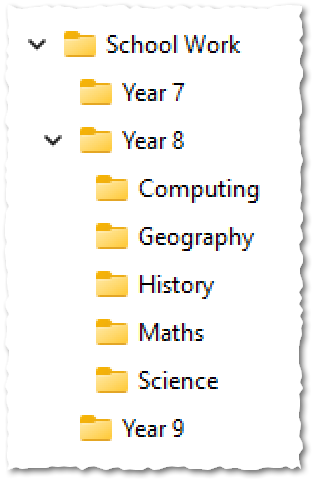
This nested structure allows you to group related files together. For example, you wouldn't put your History essay in the same folder as your high scores for a video game. Good digital organisation means creating a logical structure that makes sense to you, so you can always find what you need in seconds.

Sort it out! Pick 10 to 12 key words from these notes. Group them together based on how they connect and give each group a catchy title. Be ready to explain why you grouped them that way!

Task 1 Build-a-Tree Workshop!
It is time to get your digital workspace sorted! We are going to build a logical hierarchical directory structure for your school work.
1
Get Organised!
Open up the File Explorer on your computer:
For Windows, Start >
file explorerOn Mac, press Command + N
2
Plant the Root
Navigate to your main Documents area. Create a new folder called
School Work3
Grow the Branches
Double-click on the folder to go inside your new
School WorkYear 7Year 8Year 94
Add the Leaves
Go inside the
Year 8ComputingMathsScienceOutcome: You will have a clear, nested folder structure ready to store all your digital school work logically!

Extensions and Metadata
How does the Operating System know that a music file needs to be opened in Spotify, but a text document needs to be opened in Word? It looks at the File Extension!
A file extension is a short suffix at the very end of a filename, separated by a dot. For example, in
homework.docx.docxFiles also contain hidden information called Metadata. Metadata literally means 'data about data'. When you save a file, the OS secretly attaches extra details to it, such as:
The date the file was created
The date it was last modified
The file size
The author who created it
Metadata is incredibly useful because it allows you to search and sort your files. You can ask the OS to "Show me all the files created yesterday that are larger than 5MB", and it uses the metadata to find them instantly!

Boil this entire notes section to exactly three bullet points. What are the absolute, unmissable facts you need to take away today?

Task 2 The Great File Rescue!
Your downloads folder is an absolute disaster! You have been given a ZIP file full of mixed-up documents, images, and sounds. Your job is to use the OS tools to clean up the mess.
1
Get Organised!
1
Click and download the messy-downloads.zip file.
2
CRUCIAL: Right-click it and choose Extract All... to unpack the files.
3
Make sure you have enabled file extensions - click View > Show > File name extensions. Ask your teach to help if you aren't sure.
4
Organise your workspace.
2
The Metadata Inspector
Go into your extracted folder. Change your view settings to Details. Notice the columns at the top: Name, Date modified, Type, Size. This is the Metadata! Click the 'Size' column header to sort the files from largest to smallest.
If you choose View > Details Pane you should see even more metadata associated with the file. Are you suprised how much data is stored in the file?
3
Banish the unknown
Look carefully at the terrible filenames. Most of them do not really tell you what the file contains so it's a good idea to rename them so you can tell what the file is without having to open it.
1
Open the first file by double clicking it.
2
Look at the contents to see what the file is 'about'.
3
CLOSE THE FILE - this is crucial because you CAN'T rename the file if it's open.
4
Find the file again and slow double click the filename or select it and press F2.
5
Change the filename to something more appropriate but be careful you do NOT delete the file extension. If you accidently delete it, you will get a warning...
4
The Extension Sorter
Create three new sub-folders:
ImagesDocumentsAudioLook at the File Extensions of the messy files. The extension and the icon will often help you to determine the type of file and the application it will open with.
Need some AI help understanding why we use file extensions? Use this prompt:

You are an expert computer science teacher. Explain to a 13-year-old KS3 student what a file extension is and why the operating system needs it. Maximum 100 words. Keep the tone enthusiastic. NO intro, NO outro, NO deviation from the topic, NO follow-up questions.
Drag and drop the
.pngImagesMove all
.txt.docx.pptxDocumentsMove the
.mp3AudioFaster Workers: How else could you have organised the files? Is this better, worse or just different than the way we organised them?
Outcome: A perfectly organised set of sub-folders containing logically grouped and clearly named files!



Last modified: April 30th, 2026

















