




python breakout
Create the classic game of breakout using Python
turtle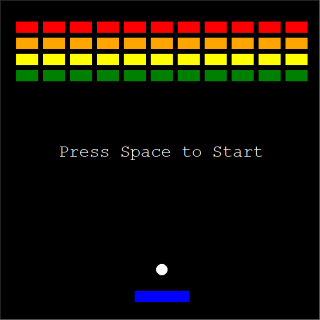
Classic Breakout... but you can't play it here...
0
Get ready to code!
1
Open up Thonny
2
You should get a blank script editor and output window. If not, create a new file from the File menu.
3
Organise your workspace.
1
Setting up the Game Screen
Before we can draw any shapes or move any pieces, we need a blank canvas to work with. This step is designed to initialise the game window, set its size, give it a background colour, and title it. We also use a special command called
tracer(0)turtleimport turtle
import time
wn = turtle.Screen()
wn.title("Breakout - The Computing Café")
wn.bgcolor("black")
wn.setup(width=600, height=600)
wn.tracer(0)
# Next: 2. Creating the Paddle
2
Creating the Paddle
Now we create the player's paddle. In the
turtlepaddle = turtle.Turtle()
paddle.speed(0)
paddle.shape("square")
paddle.color("blue")
paddle.shapesize(stretch_wid=1, stretch_len=5)
paddle.penup()
paddle.goto(0, -250)
# Next: 3. Creating the Ball
3
Creating the Ball
Next, we create the ball. Similar to the paddle, we change its shape to a circle and position it just above the paddle. We also give the ball two new variables:
dxdy0ball = turtle.Turtle()
ball.speed(0)
ball.shape("circle")
ball.color("white")
ball.penup()
ball.goto(0, -200)
ball.dx = 0
ball.dy = 0
# Next: 4. The Message Display
4
The Message Display
We want to tell the player how to start the game. To do this, we create another turtle object. However, we don't actually want to see this turtle at all - we only want to use it to write text onto the screen! We will hide the turtle shape, move it to the centre of the screen, and use it to display a starting instruction.
message = turtle.Turtle()
message.speed(0)
message.color("white")
message.penup()
message.hideturtle()
message.goto(0, 0)
message.write("Press Space to Start", align="center", font=("Courier", 24, "normal"))

# Next: 5. Building a Wall of Bricks
5
Building the Wall of Bricks
A game of Breakout isn't complete without bricks to smash! Instead of writing the code for a brick 44 separate times, we use a programming technique called a "nested loop" (a loop inside a loop). The outer loop will run 4 times to create 4 rows. The inner loop will run 11 times to create 11 columns. As each brick is generated, it is coloured based on its row and added to an empty list so the computer can keep track of it later.
bricks = []
colours = ["red", "orange", "yellow", "green"]
for y in range(4):
    for x in range(-5, 6):
        brick = turtle.Turtle()
        brick.speed(0)
        brick.shape("square")
        brick.color(colours[y])
        brick.shapesize(stretch_wid=1, stretch_len=2)
        brick.penup()
        brick.goto(x * 50, 250 - (y * 30))
        bricks.append(brick)

# Next: 6. Adding Player Controls
6
Adding Player Controls
You need to be able to interact with the game! Here, we define three functions (blocks of reusable code). Two functions will move the paddle left and right by checking its current coordinate and adding or subtracting pixels. The third function will release the ball by changing its speed from 0 to 3, but only if it is currently stationary. Finally, we tell the computer screen to "listen" for keyboard inputs and link our functions to specific keys.
def paddle_right():
    x = paddle.xcor()
    if x < 240:
        x += 40
        paddle.setx(x)
def paddle_left():
    x = paddle.xcor()
    if x > -240:
        x -= 40
        paddle.setx(x)
def release_ball():
    if ball.dx == 0 and ball.dy == 0:
        message.clear()
        ball.dx = 3
        ball.dy = 3
wn.listen()
wn.onkeypress(paddle_right, "Right")
wn.onkeypress(paddle_left, "Left")
wn.onkeypress(release_ball, "space")

# Next: 7. The Main Game Loop & Wall Collisions
7
The Main Game Loop & Wall Collisions
This is the engine of your game. The
while True:time.sleepifwhile True:
wn.update()
time.sleep(0.01)
ball.setx(ball.xcor() + ball.dx)
ball.sety(ball.ycor() + ball.dy)
if ball.ycor() > 290:
ball.sety(290)
ball.dy *= -1
if ball.xcor() > 290:
ball.setx(290)
ball.dx *= -1
if ball.xcor() < -290:
ball.setx(-290)
ball.dx *= -1
if ball.ycor() < -290:
ball.goto(0, -200)
ball.dx = 0
ball.dy = 0
paddle.goto(0, -250)
message.write("Press Space", align="center", font=("Courier", 24, "normal"))
# Next: 8. Paddle and Brick Collisions
8
Paddle and Brick Collisions
Finally, we need to program the physics of hitting objects. The computer doesn't automatically know when two shapes touch; we have to tell it the exact mathematical coordinates that count as a "hit". Important: This code belongs inside the
while True: if (ball.ycor() > -240 and ball.ycor() < -230) \
and (ball.xcor() < paddle.xcor() + 50 and ball.xcor() > paddle.xcor() - 50):
ball.sety(-230)
ball.dy *= -1
for brick in bricks:
if (ball.ycor() > brick.ycor() - 15 and ball.ycor() < brick.ycor() + 15) \
and (ball.xcor() > brick.xcor() - 25 and ball.xcor() < brick.xcor() + 25):
ball.dy *= -1
brick.goto(1000, 1000)
bricks.remove(brick)
break
# ...and we're done!
USE - MODIFY - CREATE
Watch carefully what happens. Try NOT to lose. Whilst you are not losing, look at someone else who's also not losing. Notice anything interesting?
USE - MODIFY - CREATE
1
A New Coat of Paint
Change the look of your game by altering the colours to match your own style.
Find the line that sets the background colour:
wn.bgcolor("black")Try changing "black" to "navy" or "darkgreen".
Locate the paddle and ball colour settings:
paddle.color("blue")ball.color("white")Pick your favourite colours and swap them in!
2
Resize the Paddle
Is the game too hard or too easy? You can change the size of the paddle to adjust the difficulty.
Find the line:
paddle.shapesize(stretch_wid=1, stretch_len=5)Modify the
stretch_len833
Alter the Speed
You can tweak how fast the game plays by changing the ball's release speed and the paddle's movement step.
Inside the
release_ball()ball.dx = 3ball.dy = 3Change these numbers to
5To make the paddle move faster to catch the speedy ball, find
x += 40x -= 40Increase
40604
Brick Laying
You can easily add more rows of bricks by modifying the list of colours and the loop that generates them.
Find the list of colours:
colours = ["red", "orange", "yellow", "green"]Add two more colours to the list, such as "purple" and "pink".
Directly below that, find the loop:
for y in range(4):Change the
465
Customise the Message
Make the game interface uniquely yours.
Locate the text written to the screen at the start:
message.write("Press Space to Start", ...)Change the string to something else, like "Hit Space to Smash Bricks!".
USE - MODIFY - CREATE
1
Keep Score
Create a new turtle object to act as a scoreboard and place it at the top of the screen.
Create a score variable starting at 0.
Use the
turtle.write()Remember to clear the old score before writing the new one!
2
Multiple Lives
Create a lives variable set to 3.
Modify the bottom border collision code so that it subtracts a life each time the ball drops.
When lives reach 0, clear the screen and display a "Game Over" message.
3
Need for Speed
Make the game progressively harder to test the player's reflexes.
Add logic inside your brick collision loop that slightly increases both
ball.dxball.dyTry adding 0.5 to the speed variables and see how it feels.
4
Value the Colours
Modify your scoring system so that red bricks are worth 40 points, orange 30, yellow 20, and green 10.
Check the brick's colour attribute during the collision check to decide how many points to add.
5
Add Sound Effects
Depending on your operating system, research how to import the
winsoundosTrigger a short beep sound whenever the ball collides with the paddle or a wall.
Last modified: June 28th, 2026

















