




lesson 3.3 - design principles: language
Lesson 3.3 for BTEC DIT Component 1. We explore how words shape design! From jargon-busting to user-centred microcopy, learn why what you say on screen matters just as much as how it looks.

Imagine if your favourite video game gave you instructions in Shakespearean English ("Thou must presseth the X button forthwith!"), or if a complex banking app spoke to you like a toddler ("Time to put the pennies in the piggy bank!"). It would be confusing and frustrating, right? Today, we are looking at Language in interface design. You will learn that designing a great app isn't just about colours and buttons; it is about choosing the right words to help your user know exactly what to do, whether they are a total beginner, a busy expert, or a seven-year-old booking a cinema ticket.
Learning Outcomes
The Building Blocks (Factual Knowledge)
The Connections and Theories (Conceptual Knowledge)
The Skills and Methods (Procedural Knowledge)
Recall that language choice is a key design principle affecting user interaction.
Identify the two main factors influencing language choice: ageI have no idea what this means and skill levelI have no idea what this means.
Describe the characteristics of language suitable for a noviceI have no idea what this means versus an expertI have no idea what this means user.
The Connections and Theories (Conceptual Knowledge)
Explain why using technical jargon reduces the usability of an interface for a general audience.
Analyse how the tone of language impacts the user experience (UX) and user confidence.
Evaluate the effectiveness of text on a given interface based on its suitability for the specified demographics.
The Skills and Methods (Procedural Knowledge)
Apply design principles to select age-appropriate vocabulary for a specific scenario.
Create user interface labels and error messages that match a user's skill level.
Refine existing interface text to improve clarity and conciseness.
Digital Skill Focus: C.3.6 User-Centred Design
The Power of Language in Design
When we think of User Interfaces (UI), we usually think of colours, buttons, and layout. But there is a silent hero in design: LanguageI have no idea what this means. The text on your screen (often called 'microcopy') guides the user, explains what to do, and provides feedback. If the words are wrong, the best layout in the world won't save the project.
1
Matching the Audience: Age
The age of your target audience dictates the vocabulary and tone you must use.
Children: Language must be simple, encouraging, and limited in quantity. Avoid complex sentences. Buttons should say "Go" or "Play" rather than "Execute" or "Initialize".
Teens/Adults: Language can be more sophisticated but should remain clear. The tone might change depending on the app (e.g., a gaming app might use slang, while a banking app uses formal Standard EnglishI have no idea what this means).
Seniors: Avoid modern slang or tech-heavy terms that might alienate older users. Clarity and respect are key.
2
Matching the Audience: Skill Level
Your users will range from beginners to pros, and your text needs to cater to them.
Novice Users: They need hand-holding. Labels should be descriptive. Error messages should explain why something went wrong and how to fix it.
Expert Users: They want speed. They prefer short, standard labels (e.g., "Save", "Export") rather than long explanations. They understand industry jargon (technical terms), so using it here can actually make the interface faster to use.
3
The 3 C's of UI Text
To ensure your User-Centred DesignI have no idea what this means is effective, follow these rules:
1
Clear: Avoid ambiguity. "Remove Item?" is better than "Are you sure?" because it tells the user exactly what is happening.
2
Concise: Use the fewest words possible. Users don't read interfaces; they scan them.
3
Consistent: Don't use "Delete" on one screen and "Trash" on another. Pick one word and stick to it.

Task The Jargon Buster
It is time to rescue some users from terrible tech-speak! You have been hired to fix the text on a new app that was accidentally written by a robot 🤖.
1
Get Organised!
1
Download this template and print your self a copy.
2
Get a pen (it's a long pointy thing with ink in it).
3
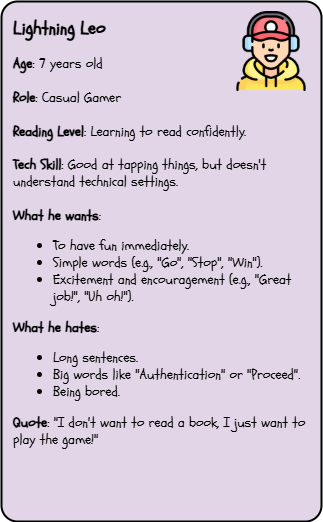
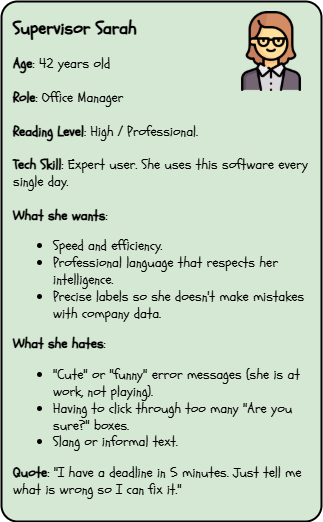
Familiarise yourself with these two user personas:
4
Now open your style-guide-ecoFlow.docx document. Later on, you will be completing Section 4: Language & Tone.
2
The Mission
Below are five terrible messages currently in the app (obviously generated by a coder). Rewrite each message twice - once for Lightning Leo (keep it fun and simple) and once for Supervisor Sarah (keep it professional and fast).
Loading Screen "Initiating asynchronous asset serialization sequence. Please maintain standby status while the rendering pipeline finalizes the buffer allocation and compiles the shader cache."
Wrong Password "Identity verification failure: The provided alphanumeric credential string does not correspond with the stored hash value in the active directory. Access privileges have been suspended pending re-authentication."
Low Battery "Critical power deficiency detected. The internal accumulator has dropped below the sustainable operational threshold. Initiating emergency hibernation protocol to preserve volatile memory integrity."
No Internet Connection "Network packet transmission error: Unable to establish a handshake with the remote host. Please verify local gateway configuration and DNS resolution latency before re-attempting the request."
Missing Field (Form Error) "Null value exception detected in a mandatory input field. The submission object cannot be processed until all required variables are populated with valid string data types."
3
Review
Swap with another pair. Would Leo understand Sarah's text? Would Sarah feel treated like a baby by the Leo's text?
4
Try it with AI!
Of course, these days, we can use AI to rephrase whole passages of text into language more suitable for particular personas. Find a suitable AI LLM, like Copilot, Gemini or ChatGPT, give it a copy of each persona card and the terrible message from Step 2 and prompt it to rewrite the message in suitable languages for the persona. See how it compares to the 'manual' versions you produced.
5
Finish your style guide
Time to complete your style guide for EcoFlow! Underneath the Section 4 headings, complete the following analysis:
1
State the typical target audience.
2
Create a user persona for them (look back at the persona cards to help you).
3
Generate 3 messages which may typically be included in the app suitable for that user persona.
4
Write a list of rules for microcopy on the app so that the designers can pitch it correctly.
5
Finally, print out your style guide and hand it in!
Outcome: A comparison table showing how language changes based on the user.


Application to the Component Sample PSA
Component 1: Majestic Cinema (User Interfaces)
For the **Majestic Cinema** project, you will likely be designing a ticket booking kiosk or app. Language is critical here because the audience is the general public (everyone from teenagers to grandparents).
Buttons: Use active verbs like "Book Tickets," "Select Seats," or "Pay Now" rather than vague terms like "Submit" or "Process."
Error Messages: If a user tries to book a seat that is already taken, the language must be polite and helpful. Instead of "Error 501: Seat Unavailable," use "Sorry, that seat is taken. Please choose another."
Accessibility: Ensure text is compatible with screen readers by using standard labels.
Component 2: Pedal Power Cycles (Data Dashboards)
Although Component 2 focuses on data, the presentation of that data relies on language.
Headings: When creating the dashboard for the managers at Pedal Power, ensure chart titles are descriptive (e.g., "Monthly Sales by Region" is better than "Chart 1").
Insights: If you include text boxes to explain trends, use professional business language suitable for managers, avoiding slang.
Slicers/Filters: Label your slicers clearly (e.g., "Filter by Year") so the user knows exactly how to interact with the data.
Out of Lesson Learning
⭐ The "Real World" Audit
Next time you use a self-service checkout (at a supermarket or fast-food restaurant), pay close attention to the screen. Find one example of a message that was really clear and helpful, and one example where the machine was confusing or rude (e.g., "Unexpected Item in Bagging Area"). Note down the exact words used in both cases and be ready to share them.
Next time you use a self-service checkout (at a supermarket or fast-food restaurant), pay close attention to the screen. Find one example of a message that was really clear and helpful, and one example where the machine was confusing or rude (e.g., "Unexpected Item in Bagging Area"). Note down the exact words used in both cases and be ready to share them.
⭐⭐ The "App vs. App" Showdown
Open two different apps on a phone or tablet: one designed for entertainment (like TikTok, Instagram, or a game) and one designed for a functional utility (like a Calculator, Calendar, or Banking app). Compare the text on the buttons. How do they differ? Does the entertainment app use exclamation marks or slang? Does the utility app use single, formal words? Write a short paragraph explaining the difference in tone.
Open two different apps on a phone or tablet: one designed for entertainment (like TikTok, Instagram, or a game) and one designed for a functional utility (like a Calculator, Calendar, or Banking app). Compare the text on the buttons. How do they differ? Does the entertainment app use exclamation marks or slang? Does the utility app use single, formal words? Write a short paragraph explaining the difference in tone.
⭐⭐⭐ The "Jargon Translator" Challenge
Find a technical paragraph - this could be from the terms and conditions of a website, a software update notification, or even a manual for a household appliance. It needs to be at least 3 sentences long and hard to understand. Your task is to rewrite this paragraph so that a 10-year-old could understand exactly what it means without losing the important information.
Find a technical paragraph - this could be from the terms and conditions of a website, a software update notification, or even a manual for a household appliance. It needs to be at least 3 sentences long and hard to understand. Your task is to rewrite this paragraph so that a 10-year-old could understand exactly what it means without losing the important information.
Last modified: January 15th, 2026

















