




lesson 4.2 - gantt charts
Master the art of time travel (well, project scheduling) with our guide to Gantt charts! Learn to plot tasks, spot dependencies, and smash those BTEC DIT deadlines without breaking a sweat.
Imagine trying to build a massive Lego set without the instruction manual showing you what to build first; you'd probably end up attaching the roof before you've even built the walls! Planning a digital project is exactly the same, and today we are looking at the ultimate project instruction manual: the Gantt chart. This visual timeline tool is the secret weapon of project managers everywhere, helping them map out exactly what needs to happen, when it needs to happen, and who is doing it, so you can guarantee your project crosses the finish line right on time.
Learning Outcomes
The Building Blocks (Factual Knowledge)
The Connections and Theories (Conceptual Knowledge)
The Skills and Methods (Procedural Knowledge)
Recall the definition of a Gantt chart and its primary purpose in project management.
Describe the core components of a Gantt chart, including the timeline axis, task bars, and milestones.
Identify what a task dependency is and how it is represented on a project schedule.
The Connections and Theories (Conceptual Knowledge)
Analyse how delays in a single sub-task can impact the overall project timescale due to task dependencies.
Evaluate the benefits of using a Gantt chart over a simple task list when managing complex, multi-week projects.
The Skills and Methods (Procedural Knowledge)
Apply project planning techniques to break down a project brief into logical tasks and estimated durations.
Create a functional Gantt chart for a given scenario, correctly plotting task durations, milestones, and concurrent tasks.
Digital Skill Focus: Using digital productivity applications to visually structure data, plan project timelines, and manage digital workflows effectively.
Visualising the Future: Introduction to Gantt Charts
When you are managing a digital project, having a simple list of tasks is a great start, but it doesn't tell you the whole story. To truly take control of a project, project managers use a Gantt chart. Named after its inventor, Henry Gantt, this is a type of bar chart that visually represents a project schedule over time. It transforms a boring list of jobs into a clear, visual timeline showing exactly what needs to happen and when!
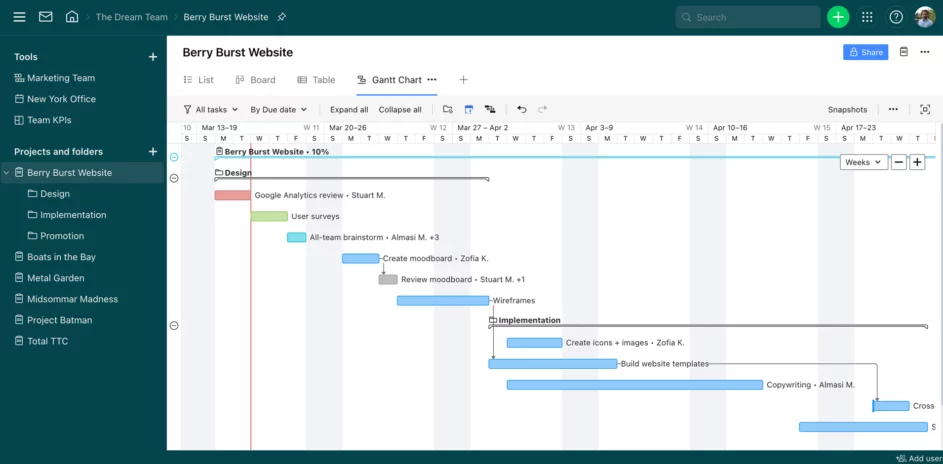
A Gantt Chart Example from Wrike
The Key Components of a Gantt Chart
If you look at any standard Gantt chart, you will notice a few consistent features that help make sense of the project timeline:
Task List: Usually found down the left-hand side, this is the breakdown of all the individual jobs that need to be completed.
Timeline: Running across the top or bottom, this shows the days, weeks, or months of the project.
Task Duration: The horizontal bars on the chart. The longer the bar, the longer the task is expected to take!
Milestone: A diamond shape or special marker indicating a major checkpoint or goal has been reached, such as a client sign-off or the final release of a product.
Working Together: Dependencies and Concurrency
One of the most powerful features of a Gantt chart is its ability to show how tasks relate to one another.
Have you ever tried to put your shoes on before your socks? It doesn't work! In project management, this is called a task dependency. A task that must be completed before another can begin is known as a predecessor. On a Gantt chart, dependencies are often shown using arrows linking the end of one task bar to the start of the next. If the predecessor is delayed, you can immediately visually see how it pushes back the next task!
However, not everything has to wait. If you have a team working on a project, two different people can do two different tasks at the very same time. These are called concurrent tasks, and they show up on a Gantt chart as bars overlapping in the same time columns. Utilising concurrent tasks is the best way to speed up a project timeline!

Task Gantt Chart Masterclass: Majestic Cinema UI
Now it is your turn to step into the shoes of a Digital Project Manager! Majestic Cinema has hired you to design their new touchscreen booking system. Your task list is ready, but the development team needs a visual schedule. Let's build a Gantt chart using a spreadsheet!
1
Get Organised!
Open a blank spreadsheet using either Microsoft Excel or Google Sheets.
If you aren't given a new spreadsheet, create a blank one.
Organise your workspace.
1
Enter the Project Data
Copy the following project data into the first four columns of your spreadsheet:
    +---------+-------------------------------+----------------+----------+---
    | A       | B                             | C              | D        |
+---+---------+-------------------------------+----------------+----------+---
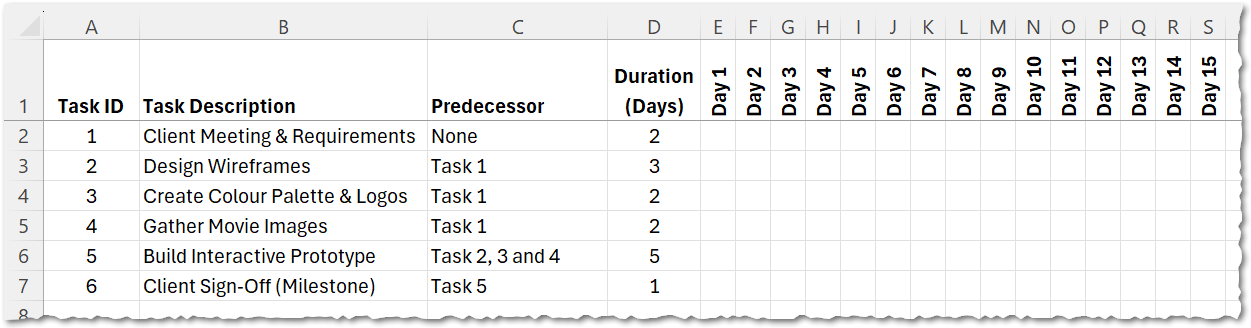
| 1 | Task ID | Task Description              | Predecessor    | Duration |
| 2 | Task 1  | Client Meeting & Requirements | None           | 2 Days   |
| 3 | Task 2  | Design Wireframes             | Task 1         | 3 Days   |
| 4 | Task 3  | Create Colour Palette & Logos | Task 1         | 2 Days   |
| 5 | Task 4  | Gather Movie Images           | Task 1         | 2 Days   |
| 6 | Task 5  | Build Interactive Prototype   | Tasks 2, 3 & 4 | 5 Days   |
| 7 | Task 6  | Client Sign-Off (Milestone)   | Task 5         | 1 Day    |
+---+---------+-------------------------------+----------------+----------+---
2
Add the timeline
Starting from Cell E1, create your timeline across the top row (E1, F1, G1 etc.). Type "Day 1", "Day 2", "Day 3" all the way up to "Day 15". Hint: There is a quick way to create these headings - see if you can figure it out...
3
Get formatting
It really helps the usability if the gantt chart looks visually appealing. We use formatting tools to make sure that the gantt chart is fit for purpose and clear. Use your skills in Excel/Google Sheets to format the chart.
1
Format Row A in Bold.
2
Freeze Row A. This will stop the headings vanishing off the top of the screen if you scroll down (useful for big projects).
3
Find out how to rotate the labels in cells E1, F1, G1 etc vertically.
4
Resize columns E onwards so they are narrow, creating a neat grid for your chart.
✅ Checkpoint 1
This is what your gantt chart should look like at this stage:
4
Block out the timeline!
1
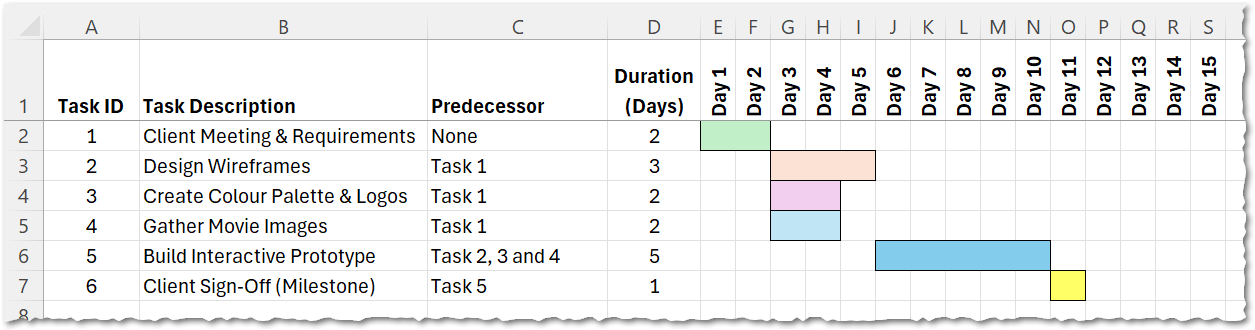
Look at Task 1. It takes 2 days and has no predecessor. Use the "Fill Colour" tool to shade the cells for Day 1 and Day 2 in Task 1's row.
2
Look at Task 2. It has a predecessor of "Task 1". This means it cannot start until Task 1 is finished! Shade 3 days for Task 2, starting on Day 3.
3
Notice that Tasks 3 and 4 also only wait for Task 1. This means they are concurrent with Task 2. Shade their durations starting on Day 3 as well.
4
Continue this logical mapping until all tasks are plotted.
5
For Task 6 (The Milestone), use a special colour (like bright gold or red) or insert a shape to show it is a major checkpoint!
6
Finally, outline the blocks with a thin black outline to make them stand out.
✅ Checkpoint 2
This is what your gantt chart should look like at this stage:
5
Reflection questions
Answer these through discussion but get ready to share your ideas with your teacher.
1
What could happen to the final project deadline/milestone if Task 1 was delayed?
2
What could the Project Manager do in order to potentially avoid this delay?
3
The Project Manager is a good boss. She wants to look after her team so she always buys them lunch. What day(s) will her lunch bill likely be highest and why?
4
Why are days 12 to 15 important to leave on the chart?
Outcome: A fully formatted digital Gantt chart accurately representing the Majestic Cinema UI project schedule, clearly showing task durations, concurrent tasks, and dependencies.


Application to the Component Sample PSA
Component 1: Majestic Cinema
For your Majestic Cinema UI project, a Gantt chart is essential for Learning Outcome B. You will need to show the moderator exactly how you plan to manage your time across the design, development, and testing phases. By plotting out when you will draft wireframes, when you will build the prototype, and scheduling a clear milestone for your final review, you prove you have the professional project management skills required to deliver the interface on time!Component 2: Pedal Power Cycles
When tackling the Pedal Power Cycles dashboard, you cannot just start clicking around in spreadsheet software. A Gantt chart will help you map out the data processing stages. You can visually demonstrate that data cleaning is a predecessor to building pivot tables, and that formatting the dashboard visualisations can only happen once the data is prepped. It is the perfect evidence to show you understand logical workflow!Out of Lesson Learning
⭐ The Majestic Time-Blocker
Imagine you are planning the initial research phase for the Majestic Cinema UI. Write down three specific tasks you need to complete (e.g., "Research competitor cinema websites"). Next to each task, write an estimated duration in days. Finally, state which task should happen first and why.
Imagine you are planning the initial research phase for the Majestic Cinema UI. Write down three specific tasks you need to complete (e.g., "Research competitor cinema websites"). Next to each task, write an estimated duration in days. Finally, state which task should happen first and why.
⭐⭐ The Pedal Power Dependency Detective
For the Pedal Power Cycles project, you need to create a dashboard. Consider these four tasks: A) Import raw sales data, B) Create a bar chart of monthly sales, C) Clean the data to remove errors, D) Change the colours of the bar chart to match the company logo. List these tasks in the exact chronological order they must be completed, and explain the dependency between task C and task B.
For the Pedal Power Cycles project, you need to create a dashboard. Consider these four tasks: A) Import raw sales data, B) Create a bar chart of monthly sales, C) Clean the data to remove errors, D) Change the colours of the bar chart to match the company logo. List these tasks in the exact chronological order they must be completed, and explain the dependency between task C and task B.
⭐⭐⭐ The Critical Path Crunch
You are the Project Manager for Majestic Cinema and your project is running late! Your Gantt chart shows that "Designing the Seat Selection Screen" (3 days) must be finished before "Building the Booking Prototype" (5 days) can begin. The client has just moved the final deadline forward by two days. Write a short email to your development team explaining what a 'concurrent task' is, and suggest how you might use concurrent tasks to save time and meet the new deadline.
You are the Project Manager for Majestic Cinema and your project is running late! Your Gantt chart shows that "Designing the Seat Selection Screen" (3 days) must be finished before "Building the Booking Prototype" (5 days) can begin. The client has just moved the final deadline forward by two days. Write a short email to your development team explaining what a 'concurrent task' is, and suggest how you might use concurrent tasks to save time and meet the new deadline.
Last modified: March 10th, 2026

















