




lesson 5.7 - introduction to prototyping software & development
Ready to build? Learn how to transform static interface designs into clickable, interactive digital prototypes using prototyping software in BTEC DIT.
Welcome to the building phase! You have spent weeks planning your project, identifying your target audience, and sketching out brilliant structural wireframes. Now, it is time to bring those static ideas to life. Today, we are opening up prototyping software to transform your flat drawings into a working, clickable digital prototype. Let's start building an interface that your users will actually be able to navigate and interact with!
Learning Outcomes
The Building Blocks (Factual Knowledge)
The Connections and Theories (Conceptual Knowledge)
The Skills and Methods (Procedural Knowledge)
Recall the purpose of developing an initial design into a working user interface prototype.
Describe the core tools, features, and navigation mechanics available in prototyping software.
The Connections and Theories (Conceptual Knowledge)
Analyse how prototyping software allows developers to test navigation and design principles before engaging in formal coding.
Evaluate the effectiveness of a digital prototype in meeting the specific user requirements and accessibility needs established in the project proposal.
The Skills and Methods (Procedural Knowledge)
Apply established design principles to build a functional, multi-screen digital prototype using dedicated software.
Create an interactive user interface that incorporates clear navigation, simulated inputs, and distinct visual outputs to meet client requirements.
Digital Skill Focus: You will apply practical digital development skills by using prototyping software to construct an interactive, navigable user interface based directly on your initial wireframe designs.
Bringing Designs to Life: Introduction to Prototyping
Once you have established your project requirements, profiled your target audience, and drawn your initial low-fidelity wireframes, it is time to move from paper to the screen. A digital prototype is a functional, interactive mockup of your final user interface. Prototyping software allows you to build this without needing to write complex lines of code.
Core Features of Prototyping Software
Prototyping software contains specific tools designed to simulate a real user experience. You must understand how to use these features to prove your design meets the user requirements:
Screens and Canvases: These act as the base layers for your interface. You will recreate your wireframes digitally by adding text, images, and shapes to these canvases.
Hotspots: A hotspot is an invisible clickable area or a linked button that triggers an action. You use hotspots to simulate user interaction.
Navigation Pathways: By linking a hotspot on one screen to another screen, you create navigation. This allows users to move logically through your app or website (e.g., clicking a "Next" button to go to a booking form, or a "Back" button to return home).
Simulated Inputs and Outputs: Prototyping tools allow you to simulate input requirements (like a dropdown menu for selecting a date) and output requirements (like a visual confirmation pop-up when a user submits a form).
Applying User-Centric Design Principles
When translating your static wireframe into a digital prototype, you must rigorously apply user-centric design principles:
Consistency: Ensure your navigation menus, fonts, and colour schemes are identical across all screens to reduce the learning time for new users.
Accessibility Features: You must implement the accessibility requirements you planned. This might mean ensuring high-contrast colours are used, or making buttons large enough for users with motor impairments.
White Space and Layout: Avoid clutter. Group related items together and use white space effectively to increase user attention on the most important interactive elements.
By building an interactive prototype, you can perform early user testing, identifying navigation flaws or accessibility issues before any expensive software development begins.


Task From Sketch to Screen: Building the Prototype
It is time to bring your designs to life! You are going to step into the role of a UI Developer and use prototyping software to turn two of your static wireframe sketches into a functional, clickable digital interface.
1
Get Organised!
Open your chosen prototyping software and create a new, blank project. Choose from the following:
Microsoft PowerPoint: You can create useable prototypes with navigation and simple animation.
Penpot.app: An open source, industry standard prototyping application
Figma.com: The grandpappy of them all.
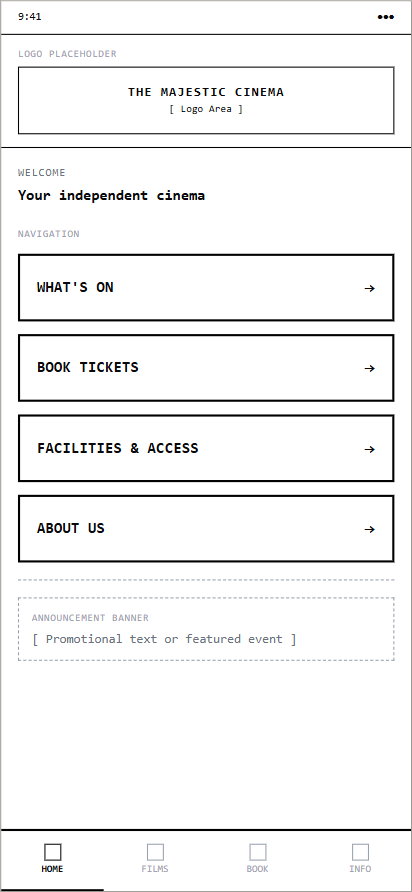
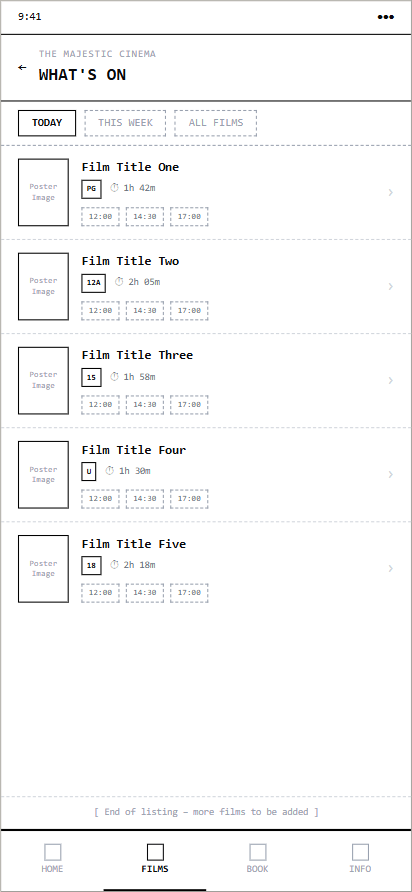
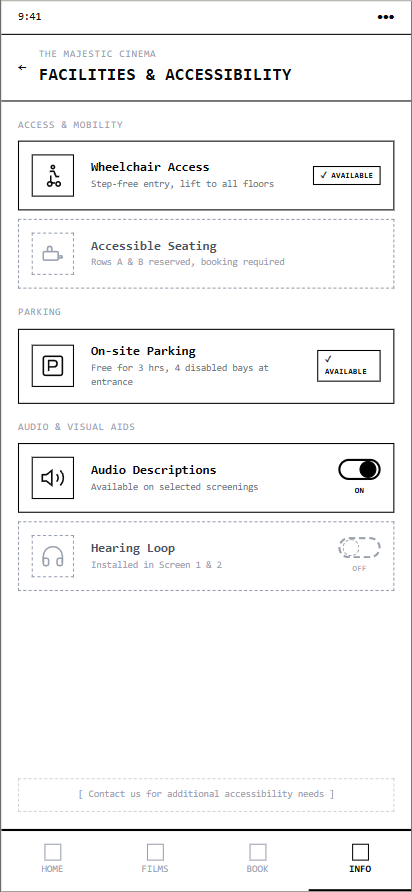
Have your drawn wireframe sketches on the desk next to you. If you haven't got any to hand, you can use this one...
Screen 1
Screen 2
Screen 3
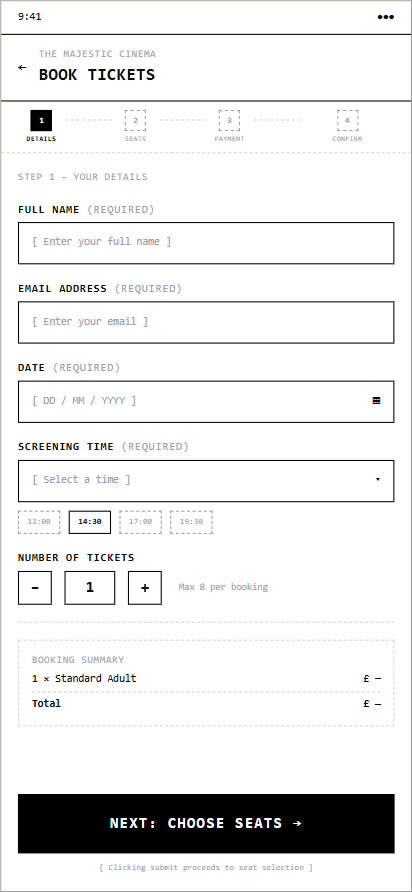
Screen 4
If you need some inspiration to see how professionals use these tools, check out this quick search: examples of interactive prototyping software tools.
2
Recreate the Layout
Create your first screen (your Home screen). Add shapes, text boxes, and placeholder images so it matches the layout of your wireframe perfectly.
Create your second screen on a new slide or canvas. Make sure your colour scheme and font choices remain consistent across both screens!
Consider the size, orientation and aspect ratio of your screens. Will they work well on a desktop, tablet or phone?
3
Add the Interactivity
You need to make the interface functional. Add a hotspot or a hyperlink to a button on your first screen. Set the action so that clicking it takes the user directly to the second screen.
On your second screen, you must provide a way back! Create a "Home" or "Back" button and link it to the first screen.
If you are wondering why returning to the main menu is so critical, ask our AI assistant for a quick explanation:
Act as an expert UI designer. Explain why prototypes need working navigation menus and back buttons. Limit the response to 75 words. The audience is 14 year old Computing students. Use a clear and helpful tone. NO intro, NO outro, NO deviation from the topic, NO follow-up questions
4
Test Your Build
Enter "Presentation" or "Play" mode in your software. Click your buttons. Does the navigation flow logically? Have you met your user requirements?
Outcome: Two digitally constructed, visually consistent screens linked together with functional, interactive hotspots to simulate user navigation.


Application to the Component Sample PSA
In Task 3 of your Component 1 Pearson-Set Assignment, you must use your initial designs to create a working prototype of the user interface for The Majestic Cinema. You will need to use prototyping software to digitally build the four required screens: Home, What's On, Facilities & Accessibility, and Ticket Booking.
It is not enough to just draw them digitally; you must use features like hotspots and hyperlinks to create a functional navigation system between these screens. For example, clicking a "Book Tickets" graphic on the Home screen must successfully transition the user to the Ticket Booking screen, and a "Home" button must be present on every sub-page to return them safely to the main menu. This demonstrates to the examiner that you understand how to build a user-centric, interactive digital product rather than just a static presentation.
Out of Lesson Learning
⭐ The Majestic Pathway Map
Write down a list of the four screens required for the Majestic Cinema interface (Home, What's On, Facilities & Accessibility, Ticket Booking). Beneath each screen name, write down exactly which other screens it needs a direct navigation link (hotspot) to, ensuring the user can move freely without getting trapped on a single page.
Write down a list of the four screens required for the Majestic Cinema interface (Home, What's On, Facilities & Accessibility, Ticket Booking). Beneath each screen name, write down exactly which other screens it needs a direct navigation link (hotspot) to, ensuring the user can move freely without getting trapped on a single page.
⭐⭐ Simulated Booking Feedback
Imagine a customer has just clicked the "Submit" button on the Ticket Booking screen for the Majestic Cinema. Write a short paragraph describing how you would use simulated outputs in your prototype to show the user that their booking was successful, detailing the text, colours, and interactive elements of the confirmation message.
Imagine a customer has just clicked the "Submit" button on the Ticket Booking screen for the Majestic Cinema. Write a short paragraph describing how you would use simulated outputs in your prototype to show the user that their booking was successful, detailing the text, colours, and interactive elements of the confirmation message.
⭐⭐⭐ The Accessibility Toggle Pitch
The Majestic Cinema caters to a diverse local community, including patrons with visual impairments. Write a short proposal explaining how you could use prototyping software to simulate a high-contrast mode toggle on your interface. Describe exactly how the interactive hotspot would work and what specific visual changes would occur on the screen when the user clicks it.
The Majestic Cinema caters to a diverse local community, including patrons with visual impairments. Write a short proposal explaining how you could use prototyping software to simulate a high-contrast mode toggle on your interface. Describe exactly how the interactive hotspot would work and what specific visual changes would occur on the screen when the user clicks it.
Last modified: May 7th, 2026

















