




lesson 3.1 - design principles: colour
Stop the rainbow mess! Learn how professional UI designers use a limited range of colours and house styles to create accessible, high-contrast interfaces. It is time to learn why the 'Cancel' button is always red.

Ever wondered why the 'Delete' button is almost always red, or why your favourite apps use the same three colours everywhere? Today, we are stepping into the role of a UI Designer to master the power of colour! It is not just about making things look "pretty"—it is about using Design Principles to guide your users, match a cool House Style, and make sure your app is usable for everyone, including those with Accessibility needs. Let's learn how to paint with purpose!
Learning Outcomes
The Building Blocks (Factual Knowledge)
The Connections and Theories (Conceptual Knowledge)
The Skills and Methods (Procedural Knowledge)
Recall that User Perception of colour often uses standard conventions like green for success and red for errors.
Describe the importance of using a Limited Range of Colours to maintain a clean and uncluttered interface.
Recall the definition of an Organisational House Style as a set of rules for consistent branding.
The Connections and Theories (Conceptual Knowledge)
Analyse how Colour Contrast impacts the Accessibility of a user interface for users with visual impairments.
Evaluate the use of Textures, such as glossy or corporate finishes, in enhancing the professional look of a UI.
Analyse the relationship between Inclusive Design and the avoidance of clashing colours.
The Skills and Methods (Procedural Knowledge)
Apply a specific Colour Scheme to a wireframe to meet a given project brief.
Create a simple Style Guide that defines the primary and secondary colours for an organisation.
Apply contrast checking tools to Evaluate if text is readable against a chosen background colour.
Digital Skill Focus: The digital skills focus for this lesson is Digital Creation, specifically the use of Digital Image Editing or Prototyping Software to manipulate hex codes and layers to achieve high Colour Contrast.
Mastering Colour in UI Design
Colour is one of the most powerful tools in a UI Designer's toolkit. It does much more than just look good; it communicates meaning, builds trust, and ensures your app is usable for everyone.
1
The Limited Range Rule
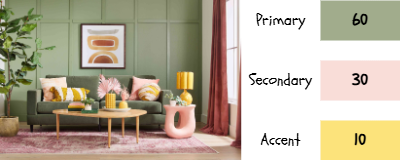
Professional interfaces use a limited range of colours. If you use too many, the screen becomes a "rainbow mess" that confuses the user. Stick to 3 main colours to keep things clean and professional.
Primary: Your main brand colour for headings, banners, logos.
Secondary: For backgrounds.
Accent: For navigational buttons, icons, embelishments.
You should also consider the 60-30-10 rules which is designed to create a balanced palette.
2
Organisational House Style
Every big company has a House Style. This is a set of rules that ensures their website looks exactly like their app and their social media. When designing, you must use the specific Colour Palette chosen by the brand.
3
User Perception & Conventions
Humans are trained to react to specific colours:
Green: Indicates Successful Interactions or "Go".
Orange: Used for Warnings.
Red: Indicates Errors or "Stop".
These colours should be separate from the primary, secondary and accent colours but should always 'compliment' them based on the hue, saturation and lightness of the palette colours.
4
Accessibility and Contrast
Inclusive Design means making sure users with Visual Impairments can read your content.
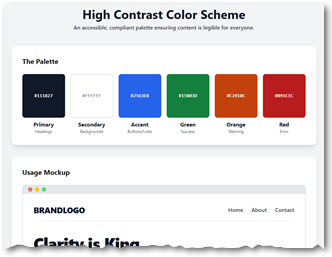
Colour Contrast: You must ensure there is a big enough difference between the text colour and the background.
Clashing Colours: Never use colours that vibrate against each other (like bright red text on a blue background), as this causes eye strain and fatigue.
In practice...
Carefully study the two examples - one with poor contrast colours, one with good contrast colours. What can you take forward from this?

Click to view
Click to view

Task Project: The EcoFlow Style Guide
You have been hired as the Lead UI Designer for EcoFlow, a new mobile app designed to help households track their water usage and reduce waste. The client needs a professional identity that screams "sustainability" without being boring.
Over the next three lessons, you will build a complete Style Guide for this app. Today, we start with the most impactful element: Colour.
1
Get Organised: Create Your Style Guide
Open your word processor and create a new document named
style-guide-ecoFlow.docxSection 1: Brand Overview (We do this today!)
Section 2: Colour Palette (We do this today!)
Section 3: Typography (Leave blank for next lesson)
Section 4: Language & Tone (Leave blank for next lesson)
2
The Brand Brief
Copy the following text into Section 1: Brand Overview of your document. Read it carefully - it tells you what the client wants!
Client: EcoFlow
Mission: To make saving water fun, easy, and rewarding for everyone.
Target Audience: Environmentally conscious families and young professionals.
Vibe: Clean, Modern, Trustworthy, Urgent but Optimistic.
Requirements: The app must use a limited colour palette to reduce cognitive load. It must be fully accessible to users with visual impairments.
Make sure you format the brief to make it look professional; don't just leave it in plain text!
3
Understand the Code (Hex & RGB)
Before you pick colours, you need to understand how the computer sees them.
Move the Red, Green, and Blue sliders.
Watch how the Hex Code (e.g., #FF5733) changes.
Action: Find a Hex code for a "watery blue" and a "warning red". Write these down on a scrap of paper.
4
Generate Your Palette
Don't guess! Use a professional tool to create a harmonious limited range.
Go to a colour scheme designer like Paletton or Coolors.
Set your "Base Colour" to the watery blue you found earlier.
Choose a Adjacent or Triad harmony to generate matching Secondary and Accent colours automatically.
Selection: You need exactly:
1 Primary Colour (Brand identity, headers)
1 Secondary Colour (Backgrounds, less important areas)
1 Accent Colour (Buttons, call-to-action)
3 Functional Colours (a green for success, a red for error, an orange for warning).
5
The Accessibility Test
Inclusive Design is not optional. You must prove your text is readable.
Go to the WebAIM Contrast Checker.
Enter your Secondary Colour (Background) and your Primary Colour (Text).
Does it pass WCAG AA standards? If not, adjust the lightness until it does.
Action: Take a screenshot of the "PASS" result.
6
Document Your Choices
Complete Section 2: Colour Palette in your Style Guide. For each colour (Primary, Secondary, Accent, three Functional), you must record:
The Hex Code (e.g., #0044CC).
A small swatch (use a coloured shape).
A Justification: Why did you choose this? (e.g., "I chose deep blue to represent the ocean and build trust.")
Evidence: Paste your WebAIM screenshot to prove your text is readable.
Outcome: A professional Style Guide with a completed Colour section, featuring a limited, accessible, and justified palette ready for the EcoFlow app.


Application to the Component Sample PSA
In the Majestic Cinema project brief, you must apply these colour principles to create a professional digital information point. You will need to create a House Style that reflects the cinema's 50-year heritage, perhaps using Corporate Textures like art-deco gold or velvet red. When designing the Ticket Booking screen, you must evaluate your Colour Contrast to ensure the "Book Now" button is distinguishable for elderly patrons or those with Visual Impairments. Using a Limited Range of Colours across all four screens is essential to meet the requirement for a Consistent Layout that makes navigation simple and intuitive.
Out of Lesson Learning
⭐ The Brand Bible: Art-Deco Edition
Look at the "Majestic Cinema" resource document. Identify three specific items (like logos or posters) and name a primary colour from each that you would include in the cinema's official house style. Briefly state why these colours match the "classic, art-deco" brand described in the brief.
Look at the "Majestic Cinema" resource document. Identify three specific items (like logos or posters) and name a primary colour from each that you would include in the cinema's official house style. Briefly state why these colours match the "classic, art-deco" brand described in the brief.
⭐⭐ Contrast Consultant
Alex from "ChipSafe Pet Services" wants his mobile booking form to be high-contrast for customers using his site outdoors in bright sunlight. Explain how Alex can use specific background and text colour combinations to prevent clashing and ensure the site is accessible. Justify your choice of colour for the "Submit" button based on standard user perception.
Alex from "ChipSafe Pet Services" wants his mobile booking form to be high-contrast for customers using his site outdoors in bright sunlight. Explain how Alex can use specific background and text colour combinations to prevent clashing and ensure the site is accessible. Justify your choice of colour for the "Submit" button based on standard user perception.
⭐⭐⭐ Accessibility Audit
Evaluate the impact of using a "dark mode" interface (light text on a dark background) for the Majestic Cinema's website. Discuss how this choice affects users with visual impairments compared to a standard light layout, and suggest two additional accessibility features that could work alongside colour to help patrons with hearing or cognitive needs navigate the cinema's facilities.
Evaluate the impact of using a "dark mode" interface (light text on a dark background) for the Majestic Cinema's website. Discuss how this choice affects users with visual impairments compared to a standard light layout, and suggest two additional accessibility features that could work alongside colour to help patrons with hearing or cognitive needs navigate the cinema's facilities.
Last modified: January 8th, 2026

















