




lesson 4.1 - planning tools - task lists & descriptions
Stop the project panic! Learn how to chop big tech projects into bite-sized task lists. Essential planning skills for DIT pros.
Ever tried to build a massive LEGO set without the instruction manual? It usually ends in a pile of bricks and a lot of frustration! In the world of tech, we don't just "start coding" and hope for the best. We need a plan. Today, we are becoming project managers. You'll learn how to take a big, scary project and chop it up into a task list that is so clear, even your rubber duck could follow it. Let's get organised!
Learning Outcomes
The Building Blocks (Factual Knowledge)
The Connections and Theories (Conceptual Knowledge)
The Skills and Methods (Procedural Knowledge)
Recall the definition of a task list as a project planning tool.
Describe the purpose of written task descriptions in a project plan.
The Connections and Theories (Conceptual Knowledge)
Analyse a project brief to identify the individual tasks required for completion.
Evaluate the importance of task dependencies when ordering a list of project activities.
The Skills and Methods (Procedural Knowledge)
Create a comprehensive task list for a given user interface project.
Apply specific, detailed descriptions to tasks to ensure project requirements are met.
Digital Skill Focus: This lesson focuses on developing the ability to organise data through logical structures and meaningful task definitions to improve digital proficiency.
Mastering the Art of the Plan
Every great digital product - from the latest smartphone app to a blockbuster video game - starts with a clear breakdown of what needs to be done. In project management, we call this decompositionTo break down into smaller, more manageable parts in order to make a problem easier to solve. (decompose, decomposing).
What is a Task List?
A task list is a simple but powerful tool used to identify every individual action required to complete a project. Without a task list, projects often suffer from "scope creep" (where the project gets bigger and bigger without a plan) or missed deadlines.
The Anatomy of a Task
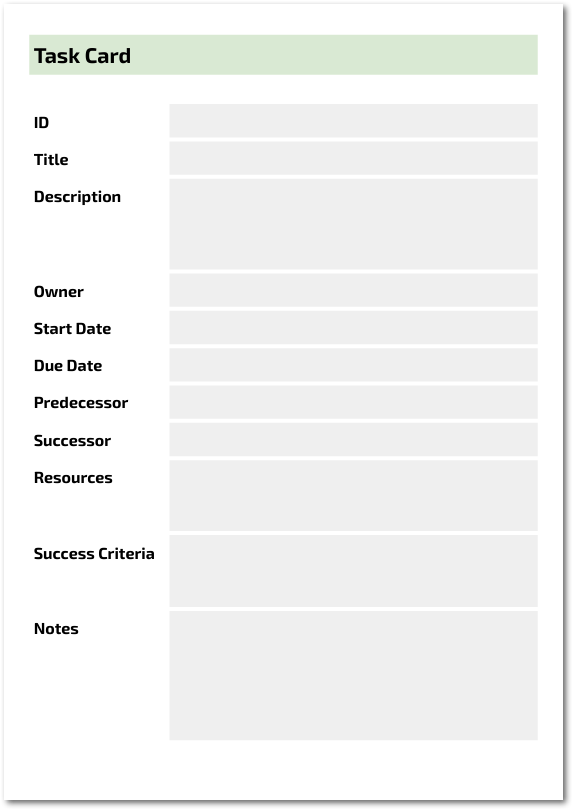
Forget everything you know about to-do lists. A task list isn't just a group of random notes written on a scrappy piece of paper. To be effective, each and every task needs a lot of detail:
Task ID
A unique identifer for the task, required in case two or more tasks have the same title.
Title
A short, action-oriented name (e.g., "Create Wireframes").
Description
A detailed breakdown of what, why, and how.
Owner
The person or role who is responsible for completing the task.
Start Date
When work on this task is scheduled to begin.
Due Date
The hard deadline for completion.
Predecessor(s)
Task(s) that MUST be finished before this starts.
Successor(s)
Task(s) that can only start once THIS task is finished.
Resources
Software, hardware, or data required (e.g., Figma, Branding Guide).
Success Criteria
A checklist of requirements to mark the task as 'Complete'.
Notes
A place to make notes as you work through your task.
I know, right?
In order to be clear and consistent within your team, it's important that everyone uses the same template for their tasks. This is necessary to ensure that the Project Manager and everyone on the team knows who's doing what, where, when, how and why.
The keen eyed amongst you may have noticed the absence of a task 'status'. True, we could include this on the task card but it would need to be updated regularly, so often the status of the task is tracked by it's position on a board (this is the rooted in the Kanban methodology from 1950s Toyota fame).
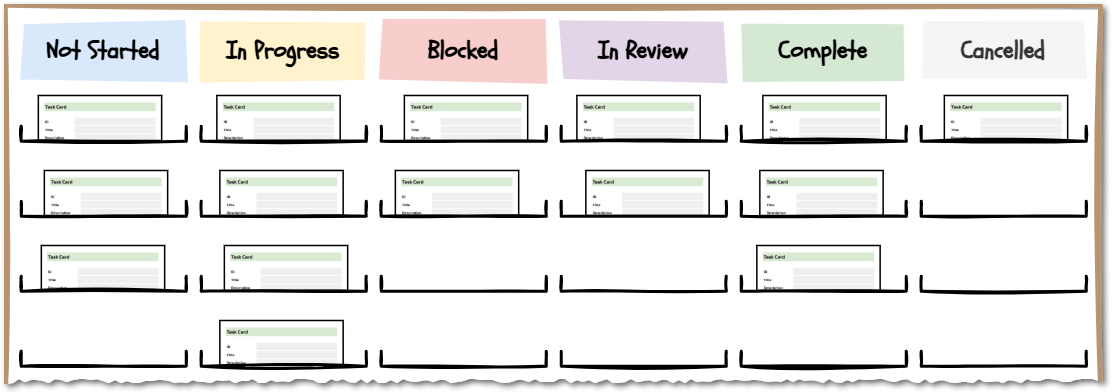
A Kanban Style Board
What do these task statuses actually mean?
Not Started: The task has been identified and planned, but no work has begun.
In Progress: Work is currently being carried out on this task.
Blocked: Work cannot continue because a Predecessor task is not yet finished or a resource is missing.
In Review: The work is physically complete but is being checked against the Success Criteria by a peer or manager.
Complete: The task has passed review and is 100% finished. No further work is required.
Cancelled: The task is no longer required due to a change in the project brief or scope.
Professional teams use specialist tools like...
...but they are often complicated to set up and use and have paid tiers which always seem to have the features you need (I'm sure they do this on purpose). There are also a few free tools we can use...
...but they tend to be either feature poor or difficult to install so, it looks like we are stuck with task cards and a whiteboard.
...but they are often complicated to set up and use and have paid tiers which always seem to have the features you need (I'm sure they do this on purpose). There are also a few free tools we can use...
Taiga (Web Based)
Kanboard (Downloadable App)
WeKan (Complicated installation)
...but they tend to be either feature poor or difficult to install so, it looks like we are stuck with task cards and a whiteboard.

Task Project Manager Pro

1
Get Organised!
Find a partner. One of you is the Project Manager (responsible for the list structure), and the other is the Lead Designer (responsible for the technical descriptions).
2
Analyse the Brief
Read the brief carefully. There isn't a great deal of detail so you might have to think outside the box...
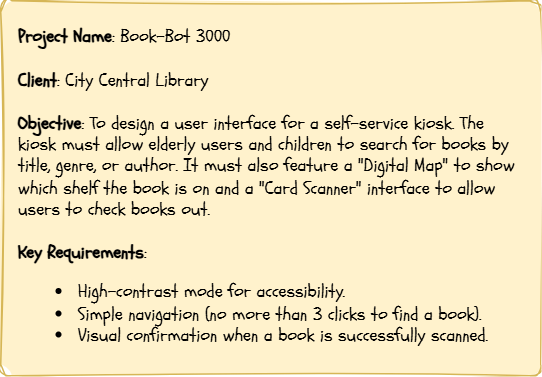
The Client Brief
Your goal is to design and build a touch-screen kiosk for a local library that allows users to:
Search for books.
Return books.
Borrow books.
Scan their library card.
View a map of the library.
3
Build the List
If your teacher hasn't done so already, download and print 8 copies of the task-card.pdf template.
Complete the task cards by hand making sure that you are detailed enough that you could hand your card to someone else and they would be able to follow it.
Need some help?
Ok, so here is a list of the tasks you might need...
Task 1: Audience Analysis
Task 2: Hardware (Kiosk) design
Task 3: Search UI Wireframe
Task 4: Library Map Integration
Task 5: Accessibility Audit
Task 6: Visual Asset Creation
Task 7: Interactive Prototype
Task 8: User Acceptance Testing
Task 1: Audience Analysis
Task 2: Hardware (Kiosk) design
Task 3: Search UI Wireframe
Task 4: Library Map Integration
Task 5: Accessibility Audit
Task 6: Visual Asset Creation
Task 7: Interactive Prototype
Task 8: User Acceptance Testing
4
Peer assess
Now compare your cards to one of the other groups in your class. What did you miss? What did you get that they didn't? Can you see how teamwork might make this initial planning more comprehensive?
5
Is it better online?
Try signing up for a free account on Trello or Taiga. If you are a Microsoft user, you might have access to Microsoft Planner which uses a Kanban style board to manage your tasks. I suppose you could use Microsoft Tasks but really, why would you?
6
Surely there is a spreadsheet for that?
Well, yes, obviously there is. Here is a project-planner.xlsx template for you to experiment with. Like most things, it works way better in Google Sheets. If you have a Google account, you can get yourself a copy of the project-planner to save to your Google Drive account.
Outcome: A professional project task list ready to be handed to a development team and a cornucopia of options for task management.


Application to the Component Sample PSA
In your Component 1 PSA (Majestic Cinema), you are tasked with developing a user interface for a cinema booking system. You cannot simply jump into design software like Adobe XD or PowerPoint. The task list is your first step in Learning Outcome B. By breaking down the Majestic Cinema brief into tasks - such as "Create Colour Palette for Cinema Brand," "Draft Wireframe for Seat Selection," and "Develop Navigation Flow" - you demonstrate that you can manage a project systematically. High-quality descriptions in your task list prove to the moderator that you understand the specific needs of the cinema's audience, such as ensuring the text is legible for older patrons or that the booking button is prominent.
Out of Lesson Learning
⭐ The Majestic Breakdown
Review the Majestic Cinema brief. Identify three tasks that are "Design" focused and three that are "Technical" focused (e.g., accessibility or data). Write a one-sentence title for each.
Review the Majestic Cinema brief. Identify three tasks that are "Design" focused and three that are "Technical" focused (e.g., accessibility or data). Write a one-sentence title for each.
⭐⭐ The Dependency Map
Using your list from the first task, decide which tasks are "Predecessors" (must happen first). For example, can you choose a font before you know who the audience is? Write a short explanation of why the order of tasks matters for a cinema booking system.
Using your list from the first task, decide which tasks are "Predecessors" (must happen first). For example, can you choose a font before you know who the audience is? Write a short explanation of why the order of tasks matters for a cinema booking system.
⭐⭐⭐ The Quality Controller
Select one task: "Design the Movie Selection Screen." Write a "Gold Standard" description for this task that includes at least two success criteria (e.g., "Must include movie posters" and "Must have a back button").
Select one task: "Design the Movie Selection Screen." Write a "Gold Standard" description for this task that includes at least two success criteria (e.g., "Must include movie posters" and "Must have a back button").
Last modified: February 12th, 2026

















