




lesson 3.10.2 creating vector characters
Master digital design by creating vector characters using primitive shapes, the pen tool, layering, and grouping.

Welcome back, digital artists! Today, you are stepping into the shoes of a professional Illustrator and Game Modeller. We are going to ditch the blurry pixels and use the pure mathematical power of vectors to build a crisp, clean, and scalable digital character. You will learn the secrets of the digital pen tool and discover how stacking shapes on top of each other can bring your creative vision to life!
Learning Outcomes
The Building Blocks (Factual Knowledge)
Recall the definition of a primitive shape and a custom vector path.
Describe how the Z-axis is used to stack objects in a 2D digital workspace.
Recall the purpose of grouping multiple vector elements together.
The Connections and Theories (Conceptual Knowledge)
Analyse the benefits of using a vector graphics editor over a bitmap editor for character asset creation.
Evaluate the visual impact of layering different shapes to create a sense of depth.
The Skills and Methods (Procedural Outcomes)
Apply the pen tool to manipulate nodes, anchor points, and bezier curves.
Apply Z-axis ordering to arrange overlapping character features correctly.
Create a complete, grouped vector character using a combination of basic shapes and custom paths.
Digital Skill Focus: Today you will focus on mastering digital image creation tools to build precise, scalable graphic elements ready for professional use.
The Power of Vectors
Before we start building, let's remind ourselves why we are acting as game modellers today. Last lesson, we discovered that a standard bitmap image is made up of a grid of tiny, square colour blocks called a pixel. If we zoom in on a bitmap, it becomes blurry and blocky.
As digital artists, we want our characters to look perfectly crisp whether they are on a tiny mobile phone screen or a massive 4K television. This is why we use a vector graphic! Vectors use mathematical coordinates to draw lines and shapes, meaning they are perfectly scalable. No matter how close you zoom in, the computer recalculates the maths and redraws the shape with perfectly sharp edges. The most common file format for this is an SVG (Scalable Vector Graphic).
Instead of painting pixels, today you will act as a structural engineer, placing mathematical coordinates on a digital canvas!
Primitive Shapes
Some vector tools allow you to draw complex shapes. Wick Editor isn't like that - it only has three basic shapes called primitives - a rectangle, an ellipse and a line. There is also a pen and a brush tool but they aren't very accurate so we don't tend to use them unless we really have to.
Almost ANY drawing can be built up from these shapes.
Layering
In digital design, your canvas isn't just flat (up, down, left, right). It has depth, known as the z-axis. Think of the z-axis like a stack of pancakes. The first shape you draw is the pancake on the bottom of the plate. The next shape is dropped on top. This is called layering. If you draw a hat first and the head second, the head will hide the hat! You must use Wick Editor's "Outliner" and "Canvas Actions" to move shapes "Forward" or "Backward" on the z-axis so the eyes sit on top of the face, and the cape sits behind the back.
Boil this entire section down to exactly three bullet points. What are the absolute, unmissable facts you need to take away today about why we use vectors instead of bitmaps for character design?

Task 1 The Shape Builder
Welcome to your digital studio! Every great video game character, from Mario to Sonic, can be broken down into basic geometric blocks. Your first job is to construct the base of your character using only ready-made primitive tools in Wick Editor.
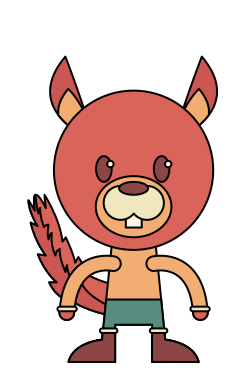
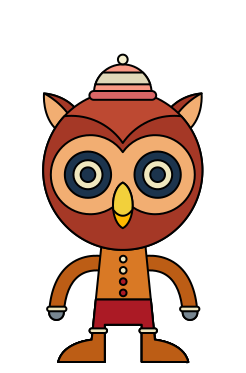
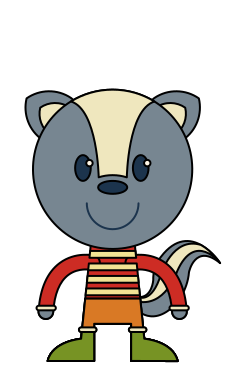
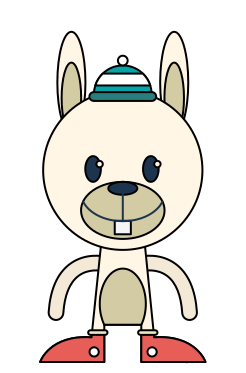
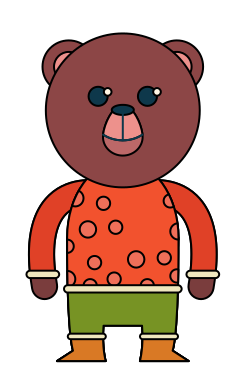
Need some inspiration? Take a look at some examples of simple 2D vector game characters before you begin.
If you are struggling to find anything suitable, here are some simple characters made from lots of simple shapes to get you started...

1
Get Organised!
Open a new tab and navigate to Wick Editor.
Close the dialogue box to reveal your canvas.
2
Build the Base
Look at the Toolbar at the top. Make sure you know where the Rectangle, Ellipse and Line tools are. These are your primitives. Select the rectangle tool.
Click and drag on the white canvas to draw a large shape for your character's body.
Change to the 'Cursor' tool and select the shape you've just drawn.
Look at the Inspector panel on the right. Click the colour box next to Fill to change the inside colour. You can also change the Line colour and thickness here!
Try using the bounding box handles to resize and rotate the shape if you need to.
3
Layering
You will notice that, whilst you are drawing, the shapes stack on top of each other. This is called layering. There are two tools which you can use to manage the layering of objects:
The 'Inspector': This allows you to drag and drop the layers into order.
The layering tools in the 'Canvas Actions' menu.
Whilst you are drawing, make use of these tools to move your objects into the correct order so the right things sit on top of others.
Do your best to get your characters basic shape drawn out but DON'T worry about getting the finer details correct yet!
3
Add the Features
Use smaller primitive shapes to add eyes, a nose, or buttons on a shirt.
Remember: If you want to move or resize a shape, you MUST switch to the Cursor tool (the black arrow at the top of the left toolbar) first!
Keep editing until you are happy with your basic character.
Outcome: A basic character torso and face constructed entirely out of simple geometric shapes, demonstrating your ability to manipulate vector properties in Wick Editor.

Mastering the Path Tool
Primitive shapes are great for a quick start, but what if your character needs a spiky cape, a jagged sword, a fancy waistcoat, or weird alien horns? You cannot build everything out of pure ellipses, lines and rectangles!
This is where the Path Tool comes in. It is the most powerful weapon in a digital artist's arsenal. The Path tool in the Wick Editor allows you to add, remove and manipulate individual vertices on a primitive shape to create more complex ones using Bézier curves.
Click and drag on an existing vertex to reposition it.
Click and drag on an a line segment to pull it into a curve.
Double click on an existing vertex to toggle it between a sharp point and a Bézier curve.
When the vertex is acting as a curve, you can click and drag the Bézier handles to adjust the curve. Holding the Shift key down whilst you are dragging will only reposition the active handle instead of both.
In the Wick Editor, you place a primitive shape first and then use the path tool to manipulate the corners, edges, add new anchor points and move stuff around until you are happy with your new shape.
Turn these words into pictures! Draw 3 small doodles or icons that sum up the difference between a primitive shape, a vertex, and a bezier curve. You don't need to be an artist - making it visual helps your brain remember!
Task 2 The Custom Path
Whilst it's generally OK to draw simple characters with basic primitives, it's better to get busy with the path tool to make it look outstanding.
Are you struggling to understand how the Bézier curves work? Ask Google's AI to explain it to you using this special prompt...
Act as a Graphic Design Teacher. Explain what a bezier curve is in digital art. Limit your response to 100 words maximum. Explain it so a 12-year-old can understand. Use a fun tone. NO intro, NO outro, NO deviation from the topic, NO follow-up questions.
1
Get Organised!
Look at your base character and compare it to the one you are designing. Can you see what shapes need to be tweaked?
2
Get tweaking!
As we've seen, there is no direct way in the Wick Editor to draw vector 'paths' - you have to start from a primitive, such a rectangle, circle or a line and then manipulate the shape using the 'path cursor' tool.
You can also use the 'Unite', 'Subtract' and 'Intersect' tools to convert more than one shape into a more complex one.
Make a start manipulating your primitives to improve the appearence of your character. If you get stuck, try again - this is tricky stuff!
Outcome: A custom, irregular vector shape drawn using the Path tool, featuring at least one curved line and a closed path filled with colour.
Grouping
Once your character looks perfect, there is one final, crucial step: grouping. Grouping takes all your individual vector paths (the eyes, the head, the custom hat) and mathematically locks them together into a single object. This means you can click on the character and move it, scale it, or rotate it all at once without leaving an eyeball behind!
Sort it out! Pick 5 key words from the notes above. Group them together based on how they connect and give the group a catchy title. Be ready to explain why you grouped them that way!
Task 3 The Final Polish
It's time to assemble your Frankenstein's monster!
1
Get organised!
You should still have your masterpiece on the canvas. Do one final check to make sure that all the pieces are in the correct order on the 'z-axis'.
2
Lock it Down
Once every shape is perfectly layered, click and drag a large selection box entirely over your whole character to select every single piece at once.
Press Ctrl + G / Cmd + G on your keyboard to group the shapes.
A single blue bounding box will appear around your whole character.
3
Test the Group
Click your character and drag it across the screen. If any parts get left behind, press 'Undo' (Ctrl + Z), select everything carefully, and group it again!
4
Save your masterpiece.
1
Click at the top where it (probably) says "My Project" and give your project a proper name and click the Apply button.
2
Click the green Save button. Your canvas will download as a
.wickOutcome: A fully assembled, correctly layered vector character that is grouped into a single, scalable asset in Wick Editor.


Hungry for more?
Go 3D with Shading: Learn how to add depth to your flat vector shapes by experimenting with gradients in the properties inspector.
Symmetry Challenge: Try to build a perfectly symmetrical spaceship asset by drawing half of it, copying the group, and 'flipping' it horizontally using the tools in the canvas actions menu.
Research Character Turnarounds: Professional illustrators draw characters from multiple angles. Search for examples of vector character turnaround sheets to see how the pros prepare assets for animation.
Out of Lesson Learning


Last modified: May 21st, 2026

















