




lesson 3.10.3 introduction to tweened animation
Learn how to bring vector characters to life by manipulating the timeline, keyframes, and layers.

Welcome to the animator's studio! Today, we are taking those awesome static vector characters you built last time and bringing them to life. Instead of drawing every single tiny movement like old-school cartoonists, you're going to use the power of computational algorithms to do the hard work for you. By mastering the timeline and keyframes, you'll be developing the exact same skills used by professional Motion Graphics Designers and Game Developers! Let's get things moving.
Learning Outcomes
The Building Blocks (Factual Knowledge)
Recall that a 'keyframe' is a drawing or marker on a timeline that defines the starting or ending point of a transition.
Describe the function of the playhead, timeline, and layers within a digital animation interface.
Analyse the structural differences between traditional frame-by-frame animation and algorithmic tweening.
The Connections and Theories (Conceptual Knowledge)
Describe how the computer calculates the intermediate frames between two keyframes to create the illusion of smooth motion.
Analyse why managing the Z-axis and layering is critical when animating individual parts of a character independently.
Evaluate the efficiency of tweening compared to frame-by-frame animation when developing digital assets for games or web.
The Skills and Methods (Procedural Outcomes)
Apply keyframes to an imported vector asset to create a simple tweened animation that alters its position across the canvas.
Create an isolated animation sequence by separating a grouped element onto its own timeline layer and applying independent keyframes to rotate or move it.
Digital Skill Focus: You will master timeline manipulation by setting precise keyframes and organising layers to sequence complex animations.
The Animator's Toolkit: Timelines and Keyframes
To bring our vector graphics to life, we need to understand how time is represented inside an animation program.
The Timeline and the Playhead
At the bottom of most animation software (like Wick Editor), you will find the timeline. This is a visual representation of time passing, broken down into individual chunks called frames.
A vertical line called the playhead moves across these frames from left to right. Wherever the playhead is currently sitting, that is exactly what will be displayed on the canvas at that specific moment in time. Moving the playhead manually is called scrubbing.
What is a Keyframe?
A keyframe is a very special type of frame. It is a marker on the timeline that tells the computer: "At this exact moment, I want the character to look exactly like this, in this specific position."
If we want a character to move, we don't need to draw every single step. We just need a starting keyframe and an ending keyframe further up the timeline.
Letting the Computer Do the Work
In the old days of classic cartoon animation (like early Disney films), artists had to use frame-by-frame animation. They drew every single tiny movement by hand. If an animation ran at 24 frames per second, a one-minute cartoon required 1,440 individual drawings!
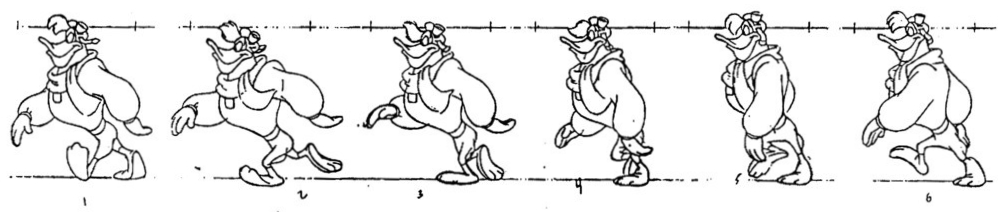
Today, we use algorithms to save time and draw the frames in-between the keyframes. This is called Tweening (short for 'in-betweening').
Algorithmic Tweening
When you use a tween, you only provide the start keyframe and the end keyframe. The computer's processor calculates the math to generate all the intermediate frames automatically. It works out exactly how many pixels the object needs to move on the X (horizontal) and Y (vertical) axes during every single frame to create a perfectly smooth motion. Tweening only works with vector images because, as we saw in lesson 1, vector images are made up from mathematical shapes and, if there is one thing that computers are good it, it's doing maths!
Want to see how this works mathematically? Check out this search for how tweening is used in digital animation.
Boil this entire section down to exactly three bullet points. What are the absolute, unmissable facts you need to take away today about how computers generate motion?

Task 1 The Great Migration: Whole Character Tween
It is time to make your character move! We are going to apply a tween to an entire vector character, sliding them smoothly across the digital canvas.
1
Get Organised!
1
Open up your browser and navigate to the Wick Editor.
2
Invite your character and get it ready to move
You have three options depending on how much of a challenge you want.
1
Draw a few simple shapes on the canvas to represent a character.
2
Download a character I made earlier...
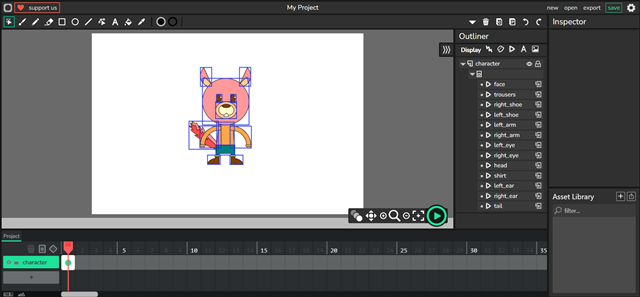
Click to Download
3
Open your own character that you made in Lesson 2.
CRITICAL: If your character is made of lots of separate shapes (like mine), use your mouse to select them all and press Ctrl + G to Group them together into a single asset. Wick Editor will automatically turn them into an animatable 'Clip'.
3
Set the Start and End points
1
Look at the timeline. Ensure the playhead is on Frame 1.
2
Click the diamond shape above the layers to create a keyframe. The frame should change from a circle to a diamond. This locks the character in position in Frame 1.
3
Now look carefully at the frame - hover over the right side of it and you should see a yellow bar. Click and drag the yellow bar to Frame 24. This should extend the frame into a bar with a dashed line through it.
4
IMPORTANT: Click on Frame 24 and choose the 'Cursor' tool.
6
Now move your shape/character to the right side of the screen. You should see another diamond keyframe in Frame 24 and the dashed line change to a solid line with an arrow. The tween is active!
3
Let the Algorithm take over!
The editor works it's magic in the background and creates all the 'in-between' frames. Just click the play button to see your character move.
Outcome: You will have a working 12-frame animation where your entire vector character smoothly tweens across the screen.

The Z-Axis: Animating Sub-Groups
Moving a whole character is great, but what if we only want their arm to wave, or their eye to blink, while the rest of the body stays still?
To do this, we must manage our layers using the Z-axis.
The X-axis is left and right.
The Y-axis is up and down.
The Z-axis is front to back (depth).
Also, if the character's tail is grouped together with its body on the exact same layer, we cannot rotate the tail without rotating the whole body!
To animate a specific sub-group (like a tail), we must place it on a brand new layer on the timeline. We can then position this new layer above or below the main body layer on the Z-axis, ensuring it looks natural while maintaining its own independent set of keyframes.
Act as an expert animator. Explain how the Z-axis is used in 2D animation layers. Limit your response to 75 words. Your audience is a Year 8 computing student. Use an encouraging, easy-to-understand tone. Do not use bullet points. NO intro, NO outro, NO deviation from the topic, NO follow-up questions.
Turn these words into pictures! Draw 3 small doodles, icons, or emojis that sum up the X, Y, and Z axes. You don't need to be an artist - making it visual helps your brain remember!

Task 2 Bring it to Life: The Wagging Tail
Your character moved across the screen, but they looked a bit like a statue sliding on ice! Let's use the Z-axis and multiple layers to make their tail wag independently.
1
Break it apart
1
Delete your previous tween so your character is standing still on Frame 1. You can do this by clicking each keyframe and pressing DELETE. You should still have the frame bar which extends from frame 1 to frame 24.
2
If your character is grouped, ungroup it by selecting it and pressing CTRL + G
3
Click ONLY on the tail of your character.
4
Cut the tail by pressing Ctrl + X. Oh no, they are tail-less ! Don't panic.
2
Manage the Z-Axis Layers
1
Look at your timeline and click the button to add a New Layer.
2
Name this new layer "Tail".
3
Click on Frame 1 of your new "Tail" layer.
4
Paste the Tail back onto the canvas using Ctrl + V.
5
Move the Tail to the correct depth (Z-Axis). If the Tail is sitting in front of the body when it should be behind it, drag the "Tail" layer down the timeline list so it sits underneath the "Body" layer where it should be!
3
Change the rotation center of the tail
To give the tail a realistic wagging action, we must change where the tail group rotates.
1
Double click the tail object. This will take you into a special canvas with only the tail on it. You should see some crosshairs. The center of the crosshair is the point where the tail rotates.
2
Select all the objects by clicking and dragging (by definition, the objects in the tail won't be grouped when in this view).
3
Move the tail objects so that the grey crosshair is located in the centre of the shoulder.
4
Click 'Project' above the timeline to go back to the main project view.
5
The tail will likely have moved so, with the playhead over Frame 1, drag the tail back to it's correct position. You will notice that the rotation center of the tail is now in a different place.
4
Create the empty tween
1
With the playhead still in Frame 1, click on the 'tail' layer and convert it into a keyframe. You don't need to do this for the main layer because it's not being animated.
2
Now, hover over the edge of each frame in each layer and drag both frames out to Frame 24. Make sure that you see the dashed line in the arm layer only.
5
Animate the arm out and back again.
FOLLOW CAREFULLY!
1
Click in Frame 24 of the tail layer.
2
Add a keyframe. This makes sure that the tail ends where it started.
3
Click in Frame 12 of the tail layer.
4
Add a keyframe.
5
Still in Frame 12, click the tail and rotate it slightly so it's pointing up.
Now click the play button!!
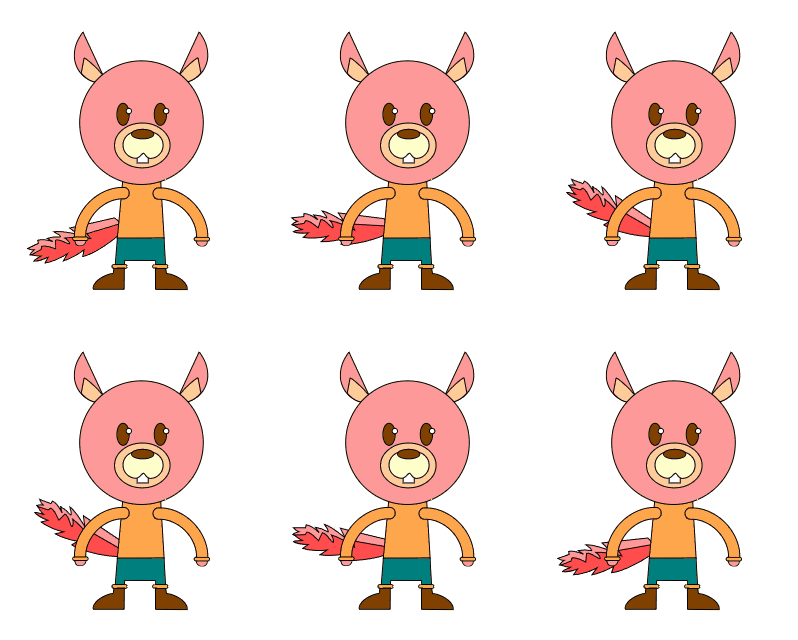
I'm pleased to see you!
Outcome: You will have a multi-layered animation where a specific sub-group of your character moves independently on its own timeline layer, demonstrating control of the Z-axis.


Hungry for more?
Easing In and Out: Make your animations look more realistic by researching what easing means in animation and applying it to your character's movement.
Scale and Fade: Try adding a tween where the final keyframe doesn't just change position, but also reduces the opacity to 0% and the scale to 200%, making your character disappear into the distance!
The Walk Cycle: Look up how professional animators create repeating movement by searching for a character walk cycle tutorial to see how many keyframes are needed for a realistic step.
Out of Lesson Learning


Last modified: June 8th, 2026

















