




lesson 3.15.1 the computer's manager
Meet the ultimate digital boss! Discover how the Operating System acts like a frantic restaurant manager to keep your computer from crashing into chaos.

Welcome to the digital kitchen! Have you ever wondered how your computer manages to play music, browse the web, and let you type a document all at the exact same time without completely crashing? It is all thanks to the ultimate boss of the computer: the Operating System. Today, we are going to look at how this invisible manager keeps everything running smoothly. Thinking like a System Integrator to understand these core functions is an absolutely essential first step if you are aiming for a career as an IT Support Technician or a Systems Architect!
Learning Outcomes
The Building Blocks (Factual Knowledge)
The Connections and Theories (Conceptual Knowledge)
The Skills and Methods (Procedural Outcomes)
Recall the definition of an Operating System as the core software that manages the computer.
Describe the five main responsibilities of an Operating System.
The Connections and Theories (Conceptual Knowledge)
Analyse the relationship between the Operating System, the hardware components, and the user applications.
Evaluate how an Operating System allocates resources to prevent conflicts, using a real-world analogy.
The Skills and Methods (Procedural Outcomes)
Apply the restaurant manager analogy to identify which part of the OS is working during different computer tasks.
Digital Skill Focus: You will observe and discuss the interface of your device to identify how the operating system manages your files and peripherals.
Who's running the show?
Have you ever wondered how your computer knows what to do when you click a mouse, or how it runs your favourite game while playing music in the background? The secret is a superhero piece of software called the Operating System (OS).
Think of the OS as the manager of a busy restaurant. The manager doesn't cook the food (that's the hardware's job) or eat the meal (that's you!), but they make sure the waiters, chefs, and customers all communicate perfectly. Without the manager, it would be chaos!
Every smart device needs an OS. Your laptop might use Windows, macOS, or Linux. Your phone might use Android or iOS. Even smart TVs and digital watches have their own operating systems. It is the most important piece of software on any device.

Task 1 OS Detectives & Time Travellers!
Every operating system has its own brand, look, and history. Let's put on our detective hats to track down some famous (and maybe some not-so-famous) Operating Systems, and then travel back in time to see how the world's most popular desktop OS has evolved!
1
Get Organised!
There is nothing to prepare although you will be using multiple browser tabs at the same time so you may want to organise your workspace so that these instructions are docked to one side of the screen and you have space on the other side for a blank tab for research.
2
The Logo Investigation
Here are the logos for 10 familiar and maybe not so familiar operating systems:


1
Open up Google Image Search in a separate tab and arrange your browser windows so you can see these instructions and the search tab side-by-side.
2
One-by-one, click each logo, hold your mouse button down and drag the image onto the Google Image Search bar. Magic!
3
Find out one interesting fact about each operating system.
4
Next, go to YouTube and search for the Operating System's name. Watch a few seconds of a video to see what it actually looks like when someone uses it!
3
Time Travel: The Windows Timeline
Microsoft Windows is the most widely used desktop operating system in the world, but it hasn't always looked like it does today!
2
Pick out at least 5 major versions of Windows from the past to the present.
3
Grab a whiteboard or a piece of blank paper and draw a timeline from, say 1960 to 2025. For each Operating System, locate the correct position on the timeline, write the name of the OS and sketch it's logo.
4
The Microsoft Bob Disaster
While you are looking at Windows history, open a new search tab and research Microsoft Bob.
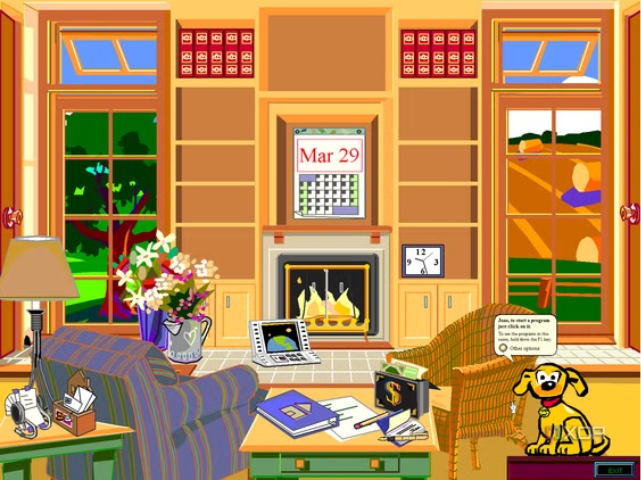
Microsoft BOB
Find out what it was, how it worked, and why it is considered one of Microsoft's biggest failures!
Outcome: You have a list of 10 identified OS logos, have seen them in action, have created a chronological timeline of Microsoft Windows, and solved the mystery of Microsoft Bob.

The Computer's Manager
So, what exactly does this manager do all day? The OS has several massive responsibilities to keep your computer running smoothly:
User Interface (UI): It gives you a way to interact with the computer. This could be a Graphical User Interface (GUI) with windows, icons, menus, and pointers, or a text-based Command Line Interface.
Memory Management: Your computer only has a limited amount of RAM. The OS decides which programs get to use the memory and when to swap data in and out.
Multitasking: Ever listened to music while typing a document? The OS slices up the CPU's time into tiny pieces, switching between tasks so fast that it looks like they are happening at the exact same time!
Peripheral Management: It talks to external hardware like printers, keyboards, and webcams using special translator files called drivers.
File Management: It organises where your documents, photos, and game saves are stored on your hard drive, keeping them in neat folders and directories so they can be retrieved instantly.
Without these vital functions, you'd have to write your own binary code just to save a file!

Task 2 The Manager's Blueprint
You have just read about the Operating System and its five main jobs. Your task is to create a clear, simple visual guide explaining what these jobs actually do before trying to apply a clever analogy!
1
Get Organised!
Decide if you want to work digitally or on paper. Open up your presentation software to create a short slide deck, or grab a blank piece of paper to make a visual poster.
2
The 5 Core Jobs
Using the text you just read, create a section on your poster or a single slide for each of the five Operating System jobs:
User Interface
Memory Management
Multitasking
Peripheral Management
File Management
For each job, write a one-sentence summary in your own words. Then, draw or insert a simple icon that represents it (like a folder for File Management, or a printer for Peripheral Management).
3
The Analogy Challenge!
Now that you have the facts written down, let's try to stretch your imagination. Imagine the Operating System is a manager at a busy restaurant. Underneath each of your definitions, add a sentence matching the computer job to a restaurant job.
For example: "Peripheral management is like the waiters carrying food out to the customers." Can you think of matches for the other four jobs?
Outcome: You have created a clear visual summary of the core OS functions and applied a real-world analogy to test your understanding.
Summing up
Operating systems are the unsung heroes of our digital world. They bridge the gap between the complex electronic signals inside the hardware and the beautiful, easy-to-use apps we rely on every day.
Whether it's organising your homework using File Management or talking to your new wireless mouse using Peripheral Management, the OS is constantly working in the background. The next time your computer seamlessly switches from a YouTube video to a homework document, remember to thank the manager!

Out of Lesson Learning


Last modified: April 20th, 2026

















