




adafruit esp32-s3 feather tft
Mastering the Adafruit ESP32-S3 Feather TFT
Introduction to Microcontrollers
A microcontroller is essentially a tiny, self-contained computer on a single chip. Unlike the computer or laptop you are using to read this, which is designed to run multiple heavy applications at once, a microcontroller is designed to do specific tasks very reliably. Think of it as the "brain" inside everyday objects. Microcontrollers read inputs from the physical world (like a button press, a temperature change, or a light sensor) and control outputs (like turning on a motor, lighting up an LED, or displaying text on a screen).
Where do we find them?
Household Appliances: Your washing machine uses one to time the wash cycles.
Toys: Remote-controlled cars use them to translate your joystick movements into wheel turns.
Smart Devices: Smart thermostats use them to read the room temperature and turn on the heating.
Introduction to the ESP32-S3 Feather TFT
The board we are using is the Adafruit ESP32-S3 Feather TFT. Let us break down what that name means:
ESP32-S3: This is the specific computer chip on the board. It is incredibly powerful, featuring a dual-core 240MHz processor. Most importantly, it has built-in Wi-Fi and Bluetooth, allowing your projects to connect to the internet!
Feather: This is Adafruit's standard shape and size for development boards. Because it is a "Feather", it can easily plug into breadboards or connect to add-on boards called "FeatherWings".
TFT: This stands for Thin-Film Transistor. It means this board comes with a beautiful, bright 1.14-inch colour display built right into the front of it!
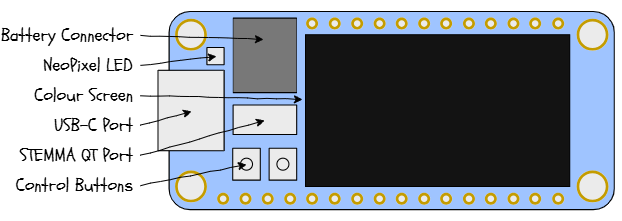
Key Features on your Board:
The Colour Screen: 240x135 pixels for displaying text, shapes, and images.
NeoPixel LED: A special programmable light that can shine in millions of different colours.
USB-C Port: Used for powering the board and sending your code from your computer.
STEMMA QT Port: A tiny white connector on the end that allows you to plug in external sensors easily without soldering.
Battery Connector: You can plug a Lithium Polymer (LiPo) battery into the board to make your projects portable.
Control Buttons: Two hardware buttons for RESET and BOOT operations.
Detailed Setup Instructions
Before we can make our board do anything, we need to set up our computer to speak its language. We will use the Arduino IDE (Integrated Development Environment), a popular software for writing C++ code for microcontrollers.
Step A: Install the Arduino IDE
1
Go to the official Arduino website: https://www.arduino.cc/en/software
2
Download and install Arduino IDE 2.x for your operating system (Windows, Mac, or Linux).
Step B: Tell Arduino about the ESP32
The Arduino IDE does not know about the ESP32 chip by default. We have to introduce them.
1
Open the Arduino IDE.
2
Go to File -> Preferences.
3
Look for the box labelled Additional Boards Manager URLs. Paste this exact link into the box:
https://raw.githubusercontent.com/espressif/arduino-esp32/gh-pages/package_esp32_index.json4
Click OK.
5
On the left-hand menu, click the Boards Manager icon (it looks like a stack of books).
6
Search for
esp32Step C: Install the Display Libraries
To use the built-in screen, we need special code libraries.
1
Click the Library Manager icon on the left menu (it looks like a library of books with a star).
2
Search for
Adafruit ST7735 and ST77893
A box may pop up asking to "Install all dependencies". Always click Install All.
4
Search for
Adafruit GFXStep D: Connect the Board
1
Plug your ESP32-S3 Feather TFT into your computer using a USB-C data cable. (Note: Make sure it is a data cable, not just a charging cable!)
2
In the Arduino IDE, go to Tools > Board > esp32 > and select Adafruit Feather ESP32-S3 TFT.
3
Go to Tools -> Port and select the port that shows your board (it usually says COM3, COM4 on Windows, or /dev/cu.usbmodem on Mac).
Troubleshooting: If your computer does not see the port, hold down the BOOT button on the board, click the RESET button once, and then let go of BOOT. This forces the board into a mode where the computer can see it.
Sample Project: "Hello, World!"
In programming, the traditional first project is to make a device say "Hello, World!". We are going to display this in bright colours on our TFT screen.
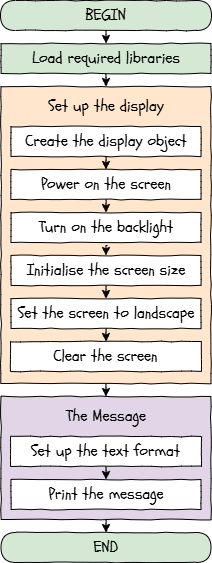
Click to view
The Code
Copy and paste the following code into your Arduino IDE.
// 1. Include the libraries needed for the screen
#include <Adafruit_GFX.h>
#include <Adafruit_ST7789.h>
#include <SPI.h>

// 2. Set up the display object using the board's built-in pins
Adafruit_ST7789 tft = Adafruit_ST7789(TFT_CS, TFT_DC, TFT_RST);

void setup() {
  // 3. Turn on the power to the TFT screen
  pinMode(TFT_I2C_POWER, OUTPUT);
  digitalWrite(TFT_I2C_POWER, HIGH);
  delay(10); // Wait a tiny bit for power to stabilise

  // 4. Turn on the screen's backlight so we can see it
  pinMode(TFT_BACKLITE, OUTPUT);
  digitalWrite(TFT_BACKLITE, HIGH);

  // 5. Initialise the screen (The resolution is 135x240)
  tft.init(135, 240);

  // 6. Rotate the screen so it is landscape
  tft.setRotation(3);

  // 7. Clear the screen by filling it with black
  tft.fillScreen(ST77XX_BLACK);

  // 8. Set up our text styling
  tft.setTextSize(3);                  // Make the text big
  tft.setTextColor(ST77XX_CYAN);       // Set the colour to Cyan
  tft.setCursor(20, 50);               // Move the cursor to the middle-ish

  // 9. Print the message!
  tft.print("Hello, World!");
}

void loop() {
  // We do not need anything in the loop for this project.
  // The screen will just hold the message indefinitely.
}
Step-by-Step Instructions:
1
Include Libraries: The
#include2
Setup function: Microcontrollers run
setup()3
Initialise and Rotate: We tell the chip the size of the screen and rotate it sideways (landscape mode).
4
Drawing Text: We clear the screen with black, pick a text size, pick a colour, tell the invisible "cursor" where to start, and finally print the text.
5
Upload: Click the circular arrow button (Upload) at the top left of the Arduino IDE. Wait for it to compile and upload. If the screen does not update immediately, press the RESET button on your board.
UMC Challenge: Hello World!
⭐ USE
⭐⭐ MODIFY
⭐⭐⭐ CREATE
Run the programme exactly as it is written above and confirm that the "Hello, World!" text appears on your screen in cyan.
Change the text to display your own name. Change the text colour to
ST77XX_YELLOW4Write a programme from scratch that displays a three-line poem or introduction about yourself, ensuring that each line uses a different colour and a different text size.
Practice Projects
Now that you have the basics working, here are five projects to practice your skills. Read the code carefully to understand how it works, then upload it to your board!
Project 1: The Rainbow NeoPixel
Your board has a built-in NeoPixel (a smart RGB LED). This project makes it cycle through rainbow colours. You will need to install the Adafruit NeoPixel library from the Library Manager first.
#include <Adafruit_NeoPixel.h>

// The board has macros built in for the NeoPixel pins
#define PIN        PIN_NEOPIXEL
#define NUMPIXELS  1

Adafruit_NeoPixel pixel(NUMPIXELS, PIN, NEO_GRB + NEO_KHZ800);

void setup() {
  // Turn on power to the NeoPixel
  pinMode(NEOPIXEL_POWER, OUTPUT);
  digitalWrite(NEOPIXEL_POWER, HIGH);

  pixel.begin(); // Initialise the pixel
}

void loop() {
  // Generate a smooth rainbow effect
  for(long firstPixelHue = 0; firstPixelHue < 65536; firstPixelHue += 256) {
    pixel.setPixelColor(0, pixel.ColorHSV(firstPixelHue));
    pixel.show(); // Send the updated colour to the hardware
    delay(10);
  }
}
UMC Challenge: The Rainbow NeoPixel
⭐ USE
⭐⭐ MODIFY
⭐⭐⭐ CREATE
Upload the code and observe the NeoPixel transitioning smoothly through the colours of the rainbow.
Change the
delay(10)delay(50)Write a new programme that removes the rainbow loop entirely. Instead, create a "traffic light" effect that sets the pixel to Red, waits 2 seconds, changes to Yellow, waits 1 second, changes to Green, waits 2 seconds, and then repeats.
Project 2: Bouncing Ball Animation
Let us use the TFT screen for an animation. We will draw a circle and change its coordinates in the
loop()#include <Adafruit_GFX.h>
#include <Adafruit_ST7789.h>
#include <SPI.h>
Adafruit_ST7789 tft = Adafruit_ST7789(TFT_CS, TFT_DC, TFT_RST);
int x = 120; // Starting X position
int y = 67; // Starting Y position
int xSpeed = 3;
int ySpeed = 2;
int radius = 10;
void setup() {
pinMode(TFT_I2C_POWER, OUTPUT);
digitalWrite(TFT_I2C_POWER, HIGH);
pinMode(TFT_BACKLITE, OUTPUT);
digitalWrite(TFT_BACKLITE, HIGH);
tft.init(135, 240);
tft.setRotation(3);
}
void loop() {
// Erase the old ball by drawing a black one over it
tft.fillCircle(x, y, radius, ST77XX_BLACK);
// Update position
x = x + xSpeed;
y = y + ySpeed;
// Bounce off edges
if (x - radius <= 0 || x + radius >= 240) { xSpeed = -xSpeed; }
if (y - radius <= 0 || y + radius >= 135) { ySpeed = -ySpeed; }
// Draw the new ball
tft.fillCircle(x, y, radius, ST77XX_YELLOW);
delay(20); // Control the speed of the animation
}
UMC Challenge: Bouncing Ball Animation
⭐ USE
⭐⭐ MODIFY
⭐⭐⭐ CREATE
Upload the code and watch the yellow ball bounce around the screen edges.
Make the ball much larger by changing the
radius25xSpeedySpeedST77XX_MAGENTAWrite a programme that draws two balls of different colours. Give them different starting positions and different speeds, and make them bounce around the screen independently at the same time.
Project 3: Battery Level Monitor
This board has a smart chip (MAX17048) that can measure an attached LiPo battery. This project reads the battery percentage and displays it on the screen. Note: You must install the Adafruit MAX1704X library, and you need a LiPo battery plugged in for this to work correctly.
#include <Adafruit_GFX.h>
#include <Adafruit_ST7789.h>
#include <Adafruit_MAX1704X.h>
#include <SPI.h>

Adafruit_ST7789 tft = Adafruit_ST7789(TFT_CS, TFT_DC, TFT_RST);
Adafruit_MAX17048 maxlipo;

void setup() {
  // Screen setup
  pinMode(TFT_I2C_POWER, OUTPUT);
  digitalWrite(TFT_I2C_POWER, HIGH);
  pinMode(TFT_BACKLITE, OUTPUT);
  digitalWrite(TFT_BACKLITE, HIGH);
  tft.init(135, 240);
  tft.setRotation(3);
  tft.fillScreen(ST77XX_BLACK);

  tft.setTextSize(2);
  tft.setCursor(10, 10);

  if (!maxlipo.begin()) {
    tft.setTextColor(ST77XX_RED);
    tft.println("Battery sensor error!");
    while (1) delay(10); // Stop here if it fails
  }
}

void loop() {
  tft.fillScreen(ST77XX_BLACK); // Clear screen
  tft.setCursor(10, 50);
  tft.setTextColor(ST77XX_GREEN);

  // Read and print battery percentage
  tft.print("Battery: ");
  tft.print(maxlipo.cellPercent(), 1);
  tft.print(" %");

  delay(2000); // Update every 2 seconds
}
UMC Challenge: Battery Level Monitor
⭐ USE
⭐⭐ MODIFY
⭐⭐⭐ CREATE
Plug in a LiPo battery, upload the code, and read your current battery percentage on the TFT screen.
Add an
ifST77XX_REDInstead of just printing numbers, create a visual application. Use the
tft.drawRect()tft.fillRect()Project 4: Wi-Fi Scanner
The ESP32-S3 is an Internet of Things (IoT) device. This code uses the built-in Wi-Fi antenna to scan for nearby internet networks and list them on the screen.
#include <Adafruit_GFX.h>
#include <Adafruit_ST7789.h>
#include <SPI.h>
#include <WiFi.h>

Adafruit_ST7789 tft = Adafruit_ST7789(TFT_CS, TFT_DC, TFT_RST);

void setup() {
  pinMode(TFT_I2C_POWER, OUTPUT);
  digitalWrite(TFT_I2C_POWER, HIGH);
  pinMode(TFT_BACKLITE, OUTPUT);
  digitalWrite(TFT_BACKLITE, HIGH);
  tft.init(135, 240);
  tft.setRotation(3);

  // Set Wi-Fi to station mode and disconnect from an AP if it was previously connected
  WiFi.mode(WIFI_STA);
  WiFi.disconnect();
  delay(100);
}

void loop() {
  tft.fillScreen(ST77XX_BLACK);
  tft.setCursor(0, 0);
  tft.setTextColor(ST77XX_WHITE);
  tft.setTextSize(2);
  tft.println("Scanning Wi-Fi...");

  int n = WiFi.scanNetworks(); // Scan for networks

  tft.fillScreen(ST77XX_BLACK);
  tft.setCursor(0, 0);

  if (n == 0) {
    tft.println("No networks found.");
  } else {
    tft.print(n);
    tft.println(" networks found!");
    tft.setTextSize(1);

    // Print the names of up to 10 networks
    for (int i = 0; i < n && i < 10; ++i) {
      tft.print(i + 1);
      tft.print(": ");
      tft.println(WiFi.SSID(i));
    }
  }

  delay(10000); // Wait 10 seconds before scanning again
}
UMC Challenge: Wi-Fi Scanner
⭐ USE
⭐⭐ MODIFY
⭐⭐⭐ CREATE
Upload the code and wait a few moments for the screen to update with a list of Wi-Fi networks near you.
Change the code so it lists the top 12 networks instead of just 10. Change the colour of the "Scanning Wi-Fi..." text to yellow so it stands out.
Create a "Wi-Fi Alarm" programme. Have the code scan for networks, and if it detects a specific network name (like your home or school Wi-Fi), make the entire screen flash green. If it cannot find it, make the screen flash red.
Project 5: Push-Button Counter
This project requires an external push-button.
#include <Adafruit_GFX.h>
#include <Adafruit_ST7789.h>
#include <SPI.h>

Adafruit_ST7789 tft = Adafruit_ST7789(TFT_CS, TFT_DC, TFT_RST);

const int buttonPin = 5;
int pressCount = 0;
int lastButtonState = HIGH;

void setup() {
  pinMode(TFT_I2C_POWER, OUTPUT);
  digitalWrite(TFT_I2C_POWER, HIGH);
  pinMode(TFT_BACKLITE, OUTPUT);
  digitalWrite(TFT_BACKLITE, HIGH);
  tft.init(135, 240);
  tft.setRotation(3);
  tft.fillScreen(ST77XX_BLACK);

  // Set up the button with an internal pull-up resistor
  pinMode(buttonPin, INPUT_PULLUP);

  updateScreen();
}

void loop() {
  int currentButtonState = digitalRead(buttonPin);

  // Check if the button was just pressed (went from HIGH to LOW)
  if (currentButtonState == LOW && lastButtonState == HIGH) {
    pressCount++;
    updateScreen();
    delay(50); // Debounce delay
  }

  lastButtonState = currentButtonState;
}

void updateScreen() {
  tft.fillScreen(ST77XX_BLACK);
  tft.setTextSize(3);
  tft.setTextColor(ST77XX_MAGENTA);
  tft.setCursor(20, 40);
  tft.print("Count: ");
  tft.print(pressCount);
}
UMC Challenge: Push-Button Counter
⭐ USE
⭐⭐ MODIFY
⭐⭐⭐ CREATE
Wire the button circuit carefully, upload the code, and press the button repeatedly to see the on-screen count increase.
Make the counter count backwards (decrease) by 1 every time you press the button. Try making it count up in increments of 5 instead
Turn this into a "Clicker Game". Start the count at 0. When the player reaches 20 clicks, have the screen clear and display a massive "LEVEL UP!" message with a different background colour, before resetting the count.
Applications in the Real World
Why learn how to programme an ESP32-S3 TFT? Because this exact technology is used in products you interact with every single day!
Smart Home Dashboards: Thermostats and smart lighting controllers use screens exactly like this to display information, and Wi-Fi to connect to your phone.
Wearable Technology: Smartwatches use microcontrollers with small screens, lithium batteries, and Bluetooth to count your steps and display notifications.
Industrial Internet of Things (IIoT): Factories use microcontrollers to monitor machine health. A screen displays local data, while Wi-Fi sends the data to a central computer for analysis.
Digital Synthesiser / Instruments: The fast processor on the ESP32-S3 can be used to generate complex audio and music, reading inputs from buttons or sliders to change notes in real-time.
Further Reading
To expand your knowledge, check out these highly recommended resources:
1
Adafruit's Official ESP32-S3 TFT Guide The ultimate resource for this specific board.
2
Arduino Language Reference The dictionary for all C++ Arduino commands.
3
Espressif ESP32-S3 Documentation For advanced students who want to understand the deep technical specifications of the chip.
4
CircuitPython An alternative way to programme this board using Python instead of C++. Great for beginners!
Happy Coding!
Last modified: March 24th, 2026

















