




lesson 3.15.3 gui vs cli
Ditch the mouse and type like a hacker! Discover the difference between Graphical User Interfaces and the text-based Command Line.

Have you ever seen a hacker in a movie typing furiously into a black screen with green text? That is the Command Line! Today, we are going to look at the two main ways we talk to our computers. We will compare the everyday visual menus we are all used to, against the secret text-based commands that professional Software Developers and Network Engineers use to control systems with lightning speed. Time to ditch the mouse!
Learning Outcomes
The Building Blocks (Factual Knowledge)
Recall what the acronyms GUI and CLI stand for in relation to operating systems.
Describe the WIMP elements (Windows, Icons, Menus, Pointers) that make up a typical Graphical User Interface.
The Connections and Theories (Conceptual Knowledge)
Analyse the conceptual and practical differences between graphical and text-based user interfaces.
Evaluate the advantages and disadvantages of using a CLI compared to a GUI for both novice users and computing professionals.
The Skills and Methods (Procedural Outcomes)
Apply principles of logical data organisation to navigate a hierarchical file system.
Create, move, copy, and delete nested folders and files using an operating system interface.
Digital Skill Focus: You will develop your core digital productivity skills by learning to efficiently organise and navigate nested files and folders using a logical hierarchical structure.
Computer User Interfaces
The Visual World: Graphical User Interfaces (GUI)
When you switch on your phone, tablet, or laptop, you are greeted by colourful backgrounds, apps, and a mouse pointer. This is the Graphical User Interface, or GUI for short! It was designed so that absolutely anyone could use a computer without needing to learn complex programming languages.
We often describe a GUI using the acronym WIMP:
Windows: Rectangular areas on the screen that display different applications.
Icons: Small pictures that represent files, folders, or programs.
Menus: Lists of options or commands you can choose from.
Pointers: An arrow (or finger on a touchscreen) used to select items.
Because a GUI has to draw all of these beautiful graphics, animations, and shadows on the screen, it requires a lot of processing power from the CPU and takes up a large chunk of your primary memory (RAM). However, the trade-off is worth it for most everyday users because it is so incredibly intuitive to use!
The Hacker's Domain: Command Line Interfaces (CLI)
Before the mouse was invented, everyone had to use a Command Line Interface (CLI). When you look at a CLI, you will only see a plain black screen with flashing text. There are no buttons to click and no menus to open!
To make the computer do anything, you have to type specific text commands using the keyboard. For example, instead of double-clicking a folder to see what is inside, you would type
lsSo, why do professional Software Developers and Network Engineers still use the CLI today?
Speed: For an expert, typing a command is much faster than navigating through five different visual menus.
Low Resources: A CLI uses almost zero RAM and CPU power, leaving all the computer's resources available for running important software.
Automation: You can write scripts to execute thousands of CLI commands automatically. Try clicking a mouse a thousand times!
The biggest drawback to a CLI is the steep learning curve; if you don't know the exact command to type, you simply cannot use the system.


Task The Great Interface Showdown
Time to pit the two interfaces against each other! You are going to research the friendly GUI, brave the intimidating CLI, and create a presentation comparing them.
1
Get Organised!
Open your presentation software and create a new blank presentation.
Add a title slide: GUI vs CLI: The Ultimate Showdown.
2
Investigate the GUI using AI
Add a new slide called The Graphical User Interface.
We are going to use AI to generate a perfect summary. Click the link below, run the search, and copy the AI's response onto your slide!
You are an expert computer scientist. Explain the main features of a Graphical User Interface, specifically mentioning the WIMP acronym. Keep it under 50 words. Explain it to a 12-year-old student. Use a fun and easy to understand tone. You must use a bulleted list. NO intro, NO outro, NO deviation from the topic, NO follow-up questions.
3
Enter the Matrix (The CLI)
Add another slide called The Command Line Interface.
It is time to type like a hacker! Open a new browser tab and visit Terminal Tutor.
Try typing the command ls and press Enter. What happened?
Try typing clear and press Enter.
On your slide, write two sentences explaining how the CLI feels different from using a mouse.
4
The Comparison Matrix
Add your final slide called Comparison Matrix.
Create a table like this:
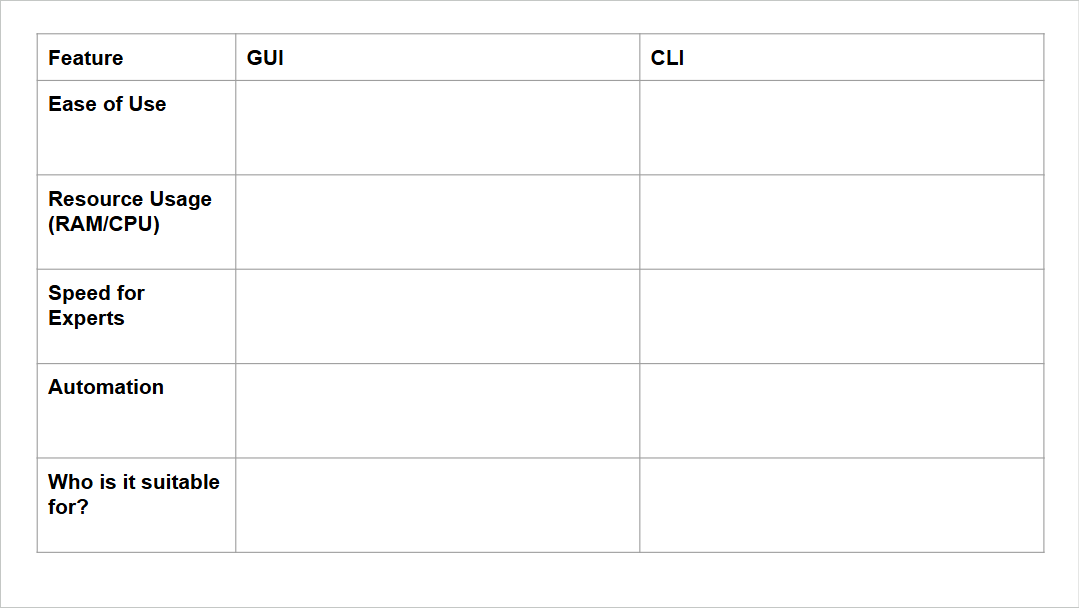
Fill in the table comparing GUIs and CLIs on: Ease of Use, Resource Usage (RAM/CPU), Speed for Experts, and Automation.
Finally, in the last row, write down which interface is best for a beginner browsing the web, and which is best for a system administrator configuring 500 servers!
Outcome: You will have a completed 4-slide presentation containing an AI-generated GUI summary, your personal CLI reflection, and a professional comparison matrix.




Last modified: May 8th, 2026

















