




lesson 2.7 - modern tech & inclusivity
A synoptic lesson connecting UI design to how modern technology can be used to aid inclusivity and accessibility.

Welcome back, designers! So far, we've looked at who our users are—whether they are experts, novices, or have specific accessibility needs. Today, we are opening the tech toolbox to see how we actually help them.
We aren't just talking about making things "look nice." We are talking about the "superpower" technologies—like screen readers that talk, interfaces that listen, and workplaces that exist wherever you open your laptop. These are the tools that level the playing field. By the end of today, you won't just know *that* you should be inclusive; you'll know exactly which buttons to press to make it happen!
Learning Outcomes
The Building Blocks (Factual Knowledge)
The Connections and Theories (Conceptual Knowledge)
The Skills and Methods (Procedural Knowledge)
Recall the three main categories of inclusivity features: interface design, accessibility tools, and flexible working practices.
State the purpose of specific accessibility technologies, including screen readers, alt text, and text-to-speech.
Identify the benefits of remote working for individuals with specific physical or neurodivergent needs.
The Connections and Theories (Conceptual Knowledge)
Explain how specific interface design choices (e.g., sans-serif fonts, high contrast) directly mitigate barriers for users with visual or cognitive impairments.
Analyse the relationship between modern cloud technologies and the ability to offer inclusive, flexible working patterns (e.g., asynchronous working).
Evaluate the impact of a "one-size-fits-all" interface versus an adaptive interface on workforce productivity.
The Skills and Methods (Procedural Knowledge)
Apply accessibility principles to critique and improve an existing user interface design.
Configure standard operating system settings to create a workspace suitable for a specific user profile (e.g., high contrast mode, sticky keys).
Create a design justification that explicitly links user needs to the technological solution selected.
Digital Skill Focus: C.3.6 User-Centred Design. This lesson addresses the declarative knowledge that "inclusive design aims to create products that are usable by people with the widest possible range of abilities," and the procedural skill to "evaluate a website or app for basic accessibility issues."
Modern Technologies & Inclusivity
In the digital world, "one size fits all" actually means "one size fits hardly anyone." Inclusivity isn't just a "nice to have" - it's often a legal requirement and an ethical duty. Today, we are exploring how modern technology bridges the gap between a user's needs and their ability to work effectively.
1
Interface Design: The First Line of Defence
Before we even add special tools, the design of the User InterfaceBlanket term to cover all methods of interaction between a computer system and its environment. (UI) itself can remove barriers.
Layout: A cluttered screen is a nightmare for users with cognitive impairments or motor difficulties. Consistent layouts help users predict where buttons are.
Font Selection: We usually prefer Sans Serif fonts (like Arial or Verdana) for screens because they are cleaner and easier to read than decorative fonts. Allowing users to adjust Font Size is crucial for those with visual impairments.
Colour Choice: High Contrast between text and background is vital. We must also avoid relying only on colour to convey meaning (e.g., "click the red button") because users with Colour Blindness might not distinguish it.
2
The Accessibility Toolkit
When good design isn't enough, we use specific Accessibility Features:
Screen Readers: Software that reads out text on the screen for blind or visually impaired users. Crucially, this software relies on Alt Text (Alternative Text) to describe images. If you don't write Alt Text, the screen reader just says "Image123.jpg" - useless!
Text-to-Speech: A feature often seen as a "Listen to this page" button. It helps users who struggle with reading large blocks of text, perhaps due to dyslexia or low literacy.
Voice Recognition: Allows users to control the computer with commands. This is a game-changer for users with motor impairments who cannot use a mouse or keyboard.
3
Flexible Working: The Hidden Feature
Inclusivity isn't just about software; it's about how we work. Modern cloud technology allows for Remote Working. Why is this inclusive?
A wheelchair user avoids the physical barrier of commuting.
A user with high anxiety or neurodivergence can control their sensory environment (lighting, noise) at home better than in a busy office.
Flexible Hours allow staff to work when their energy or concentration is highest.

Task The Accessibility Detective
Part 1: Accessibility Team
You have been hired as a Lead Accessibility Consultant. A company has released a new app, but they are getting complaints that it is unusable for many staff members. Your job is to find the problems and fix them.
1
The Audit (Pairs)
Look at the "Bad UI". It's bad.
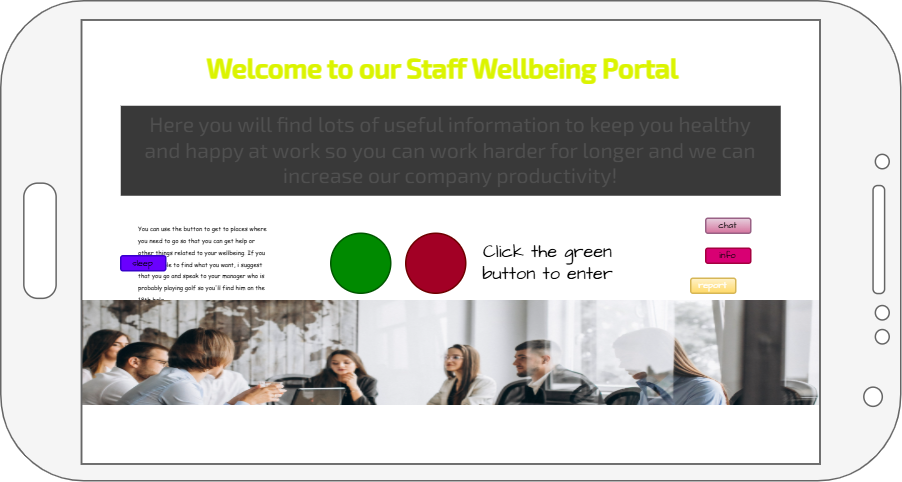
It's bad
In your pairs, discuss the shortcomings of this user interface. Specifically look for...
Low contrast text (e.g., yellow text on white background).
Tiny text.
Cluttered layout.
Information conveyed only by colour (e.g., "Click the green circle").
Tiny buttons.
You have three clients to advocate for:
Alex (Has low vision).
Sam (Has a hand tremor and struggles with a mouse).
Jo (Has dyslexia and finds walls of text difficult).
In your pairs, discuss exactly what on the screen stops these people from working.
2
The Fix (Individual)
Write a "Consultant's Report" with three bullet points—one for each client.
State the Technological Solution you would turn on or install.
Explain Why it solves their specific problem.
Example: "For Alex, I would ensure all images have Alt Text so his Screen Reader can describe the buttons he cannot see clearly."
3
The "Workplace" Upgrade
Choose one client. Suggest one Flexible Working change (not software) that modern tech enables, which would make their work life easier.
Part 2: Accessibility Tech Wiz
Checking websites for accessibility is difficult because you need an indepth working knowledge of web design. Luckily there are a few useful tools we can use to speed up our journey. Let's get back to our sample PSA - The Magestic Cinema.
1
The tools
Lighthouse
Built into Chrome/Edge browsers, Lighthouse will test accessibility of your website and generate a report of over 50 metrics.
Chrome: F12 > More tabs (>>) > Lighthouse
Edge: F12 > More tools (+) > More tools > Lighthouse
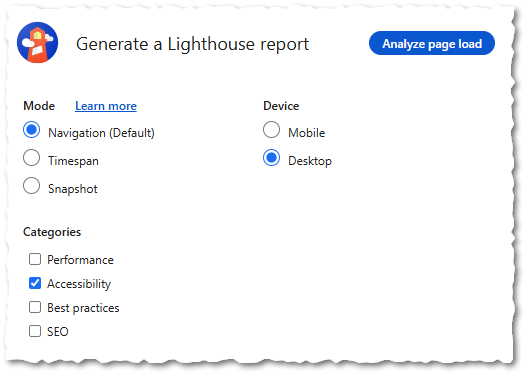
The Lighthouse Interface
WAVE (Web Accessibility Evaluation Tool)
Separate website available at https://wave.webaim.org/. Simply give it the website address and it will give you a detailed description of the accessiblility (or lack of) features on the page.
2
The Reports
Use Lighthouse and/or WAVE to perform accessibility audits on these cinema and cinema related sites.
Major Cinema Chains (Complex Booking Systems)
These sites are excellent for testing because they are heavy on interactive features. The biggest accessibility failures often happen in the "booking flow" (selecting a seat, choosing a time, or paying).
What to look for: Try to navigate the "Seat Picker" using only your keyboard (Tab key). This is notoriously difficult for accessibility tools to interpret correctly.
Independent & Arthouse Cinemas (Design-Heavy)
Independent cinemas often use custom designs or niche platforms that may prioritize aesthetics over standard coding practices.
Curzon - High-end arthouse chain.
Prince Charles Cinema (London) - Cult classic cinema, often has a unique web layout.
HOME (Manchester) - Multi-art centre, good for testing complex navigation menus.
"Control" Group (The Gold Standard)
If you want to see what a "good" report looks like, test these. These organizations are legally or ethically bound to have high accessibility standards.
BFI (British Film Institute) - They have a dedicated digital accessibility team, so this should score high.
Accessible Screenings UK - A portal specifically for finding accessible films; if this fails, it's ironic!
CEA Card - The official disability card scheme for UK cinemas.
3
The Recommendations
Let's think back to Part 1 where we saw the sorts of issues poorly designed websites can cause for the general public. Reflect on your findings from Part 2 and see if there are any additional tips and tricks you can add to the 'Consultant's Report' from Part 1.
Outcome: A targeted list of accessibility solutions linking user needs to specific modern technologies.


Application to the Component Sample PSA
The concepts from this lesson are directly applicable to Component 1 Task 2 (Design) and Task 4 (Review) for the Majestic Cinema.User Requirements: The brief explicitly states the audience includes "patrons with visual or hearing impairments". You must apply today's knowledge to select high contrast colours and sans-serif fonts for your designs.
Accessibility Features: You are required to include an icon for "Audio Description" and ensure navigation is "simple and intuitive". In Task 4, you will use terms like screen reader compatibility and alt text to justify why your design successfully meets the needs of this diverse audience.
Out of Lesson Learning
⭐ The Real-World Audit
Visit a major cinema website (e.g., Odeon or Vue) on your phone. Find the "Accessibility" link (usually at the bottom). List three physical or digital adjustments they offer for disabled customers that match what we discussed today (e.g., Audio Described screenings).
Visit a major cinema website (e.g., Odeon or Vue) on your phone. Find the "Accessibility" link (usually at the bottom). List three physical or digital adjustments they offer for disabled customers that match what we discussed today (e.g., Audio Described screenings).
⭐⭐ The Alt-Text Artist
Imagine you are building the "What's On" page for the Majestic Cinema. Write the Alt Text description for the "Space Cadets 3" film poster. Remember: a screen reader will read this aloud to a blind user. It needs to be descriptive but concise. Tip: Don't just say "Poster". Describe the image content.
Imagine you are building the "What's On" page for the Majestic Cinema. Write the Alt Text description for the "Space Cadets 3" film poster. Remember: a screen reader will read this aloud to a blind user. It needs to be descriptive but concise. Tip: Don't just say "Poster". Describe the image content.
⭐⭐⭐ The Justification Challenge
Write a single paragraph justifying a design choice for the Majestic Cinema App. You must explain why you have chosen large, distinct buttons with icons specifically for a user with a motor impairment (like a hand tremor). Use the phrase "reduce selection time" or "ease of use" in your answer.
Write a single paragraph justifying a design choice for the Majestic Cinema App. You must explain why you have chosen large, distinct buttons with icons specifically for a user with a motor impairment (like a hand tremor). Use the phrase "reduce selection time" or "ease of use" in your answer.
Last modified: December 8th, 2025

















