




lesson 3.8 - retaining user attention
Master the art of digital jedi mind tricks! Learn how to use Visual Hierarchy and the Controlatron to grab and keep user attention.

Have you ever opened an app and felt like your eyes didn't know where to land first? Or maybe you've clicked a button and wondered if anything actually happened? Today, we are learning the "jedi mind tricks" of UI design. We'll explore how to guide a user’s eyes exactly where we want them to go and how to use clever feedback like animations and notifications to keep them coming back. Let’s learn how to turn a "boring" screen into an engaging experience that users won't want to close!
Learning Outcomes
The Building Blocks (Factual Knowledge)
The Connections and Theories (Conceptual Knowledge)
The Skills and Methods (Procedural Knowledge)
Recall the definition of visual hierarchy and its role in user retention.
Describe how different layout components like notifications and progress bars provide feedback.
Analyse the impact of motion and interaction on a user's attention span.
The Connections and Theories (Conceptual Knowledge)
Describe the relationship between visual weight and user navigation paths.
Analyse how inconsistent feedback can lead to user frustration and "app abandonment".
Evaluate the ethical considerations of using attention-grabbing techniques in interface design.
The Skills and Methods (Procedural Knowledge)
Apply visual hierarchy principles to a wireframe to prioritise key information.
Create a sequence of interactive elements that provide clear feedback to a user's action.
Evaluate a prototype interface and suggest improvements to increase user engagement.
Digital Skill Focus: Students will develop their digital capability by critically evaluating social media feed designs to understand how interface choices influence their own usage patterns and screen time.
The Science of Attention
Designing a user interface isn't just about making things look "nice"; it's about controlling where a user looks and how long they stay. To do this, we use two main techniques: Visual Hierarchy and Interactive Feedback.
1
Visual Hierarchy: Guiding the Eye
Not all information is equal. A designer uses Visual Weight to tell the user's brain what to process first. You can increase an element's weight by:
Size: Larger items are noticed first.
Colour & Contrast: Bright colours against neutral backgrounds "pop".
Position: To retain user attention, we must place information where the eyes naturally go. Humans don't "read" webpages like a book; they scan them. Two dominant patterns emerge based on the amount of information on the screen:
The F-Pattern (Information Dense)
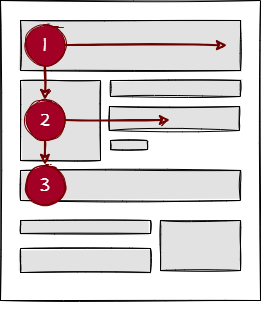
Horizontal Scan: Users first read across the top of the content area.
Second Horizontal Scan: They move down a bit and read across again (shorter this time).
Vertical Scan: Finally, they scan the left side of the page in a vertical movement.
Why it matters: If you put your most important content on the right-hand side of a text-heavy page, it will likely be ignored. This is why sidebars on the right are often used for "lesser" info like ads.
The Z-Pattern (Visual/Simple)
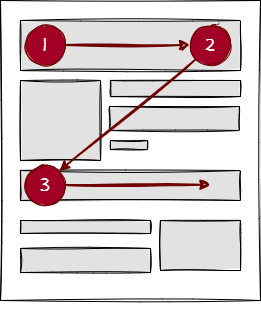
The Top Bar: The eye moves from the top-left (logo) to the top-right (login/action).
The Diagonal: The eye then cuts across the center of the page to the bottom-left.
The Closing Line: Finally, it moves across the bottom to the right.
Why it matters: This creates a "path" for the user. You should place your Call to Action (like a 'Join Now' button) at the end points of the Z to catch the eye as it finishes its journey.
2
Retaining Attention with Feedback
If a user clicks a button and nothing happens for two seconds, they assume the app is broken. We retain attention by providing Feedback:
Progress Bars: These tell the user "we are working on it, don't leave yet!"
Notifications: Small pings or red dots (badges) trigger a "reward" response in the brain, making users check the app more often.
Interactive Elements: Buttons that change colour when hovered over (hover states) or "bounce" when clicked confirm that the interface is alive.
3
Motion and Engagement
Micro-animations (like a heart icon filling with red when liked) create a satisfying experience. However, too much movement can cause Cognitive Overload. The goal is to be subtle, not distracting.
Hover for focus state • Click for action feedback
Visual Affordance (Hover): When the user hovers, the icon grows by 15% and the background changes. This tells the user, "I am interactive."
Tactile Feedback (Active/Click): The icon shrinks slightly (scale(0.85)) when pressed. This mimics a real physical button being pushed down.
Action Confirmation (Toggle): Upon completion, each icon has a unique animation (the heart "pops," the star "spins," the bookmark "drops"). This confirms the digital action has been registered.
Semantic Logic: I added a small script so that "Thumbs Up" and "Thumbs Down" behave logically - clicking one cancels the other.
Design Tip: Use the '3-Second Rule'. A user should know exactly what the most important action is on your screen within three seconds of looking at it.

Task The Controlatron: Restoration
The Controlatron is technically "running," but it's a nightmare to use. There are no colours, no glows, and no animations. The operator has no idea if the fans are spinning or if the lights are actually on!
Your job is to restore the Visual Feedback and Visual Hierarchy to make this machine professional and safe to use!
1
Get Organised!
Download the controlatron.html starter code.
Open it in your browser.
Click 'Generate Cycle'. Notice the number changes, but the buttons feel "stuck" and the progress bar is a dull grey.
Find the html file, right click and choose Edit in Notepad (or similar).
Organise your workspace.
2
Add Interaction Feedback (Hover and Push)
Find the comment
/* Task: Add .control-btn:hover and .control-btn:active */ .control-btn:hover {
border-color: #0f0;
color: #fff;
box-shadow: 0 0 10px rgba(0, 255, 0, 0.3);
}
.control-btn:active {
transform: translateY(4px);
box-shadow: inset 0 0 10px #000;
}
3
Create the Light and Motion Styles
Find the comment
/* Task: Create .light-on class with a green background */ .light-on {
background: #0f0 !important;
box-shadow: 0 0 10px #0f0;
}
Find the comment
/* Task: Create .spinning animation for the fan-icon */ .spinning {
animation: spin 1s linear infinite;
color: #0cf;
}
@keyframes spin {
from { transform: rotate(0deg); }
to { transform: rotate(360deg); }
}
Find the comment
/* Task: Create .flash animation for the Reset button */ .flash {
animation: blink 0.8s infinite;
}
@keyframes blink {
0%, 100% { background: #900; }
50% { background: #f00; }
}
Finally, find the comment
/* Task: Create .disabled class (opacity: 0.3) */ .disabled {
opacity: 0.2;
pointer-events: none;
filter: grayscale(1);
}
4
Upgrade the Progress Bar
Find the line
.bar { height: 100%; width: 0%; background: #666; transition: 0.3s; } .bar {
height: 100%;
width: 0%;
background: linear-gradient(to right, #0f0, #ff0, #f00);
transition: 0.3s;
}
5
Program the Update Logic
The logic is at the bottom of the file inside the
<script>...</script>updateUI() if(cycles === 10) {
document.getElementById('gen-btn').classList.add('disabled');
document.getElementById('reset-btn').classList.remove('disabled');
document.getElementById('reset-btn').classList.add('flash');
} else {
document.getElementById('gen-btn').classList.remove('disabled');
document.getElementById('reset-btn').classList.add('disabled');
document.getElementById('reset-btn').classList.remove('flash');
}
6
Program the Toggles
Find the
toggleLightstoggleVent function toggleLights() {
document.body.classList.toggle('light-mode');
document.getElementById('l-light').classList.toggle('light-on');
}
        function toggleVent() {
            document.getElementById('fan').classList.toggle('spinning');
        }
7
Final Emergency Stop Feedback
Find the line
function emergencyStop() { cycles = 0; updateUI(); } function emergencyStop() {
cycles = 0;
updateUI();
alert("SYSTEM RESET: ALL CYCLES CLEARED");
}
8
The acid test
Now, go back to the browser display for the Controlatron and refresh the page by clicking the refresh button or pressing F5 on your keyboard. Try out the new shiny interface! Great isn't it?
Outcome: A fully interactive dashboard where every click produces a reaction, and the machine's state is clear through light, colour, and motion.


Application to the Component Sample PSA
In the Majestic Cinema project, you are tasked with designing an interface for a busy kiosk where customers must book tickets quickly.
Visual Hierarchy is vital here: if the "Book Tickets" button is the same size as the "Terms and Conditions" link, the cinema foyer will become crowded with confused customers. By applying Visual Weight to the primary action, you ensure a high Throughput of users.
Furthermore, Interactive Feedback is a requirement for accessibility. If an elderly customer presses a button on a touch screen and there is no "click" sound or visual change (like a button push animation), they may press it multiple times, causing errors. Using the Z-Pattern to place the "Confirm Payment" button at the bottom right ensures the layout feels intuitive, matching the Mental Model of every other booking system they have used.
Out of Lesson Learning
⭐ The PSA Pattern Hunter
Visit the website of a major cinema chain (like Odeon or Cineworld). Take a screenshot of the homepage and draw a "Z" or an "F" over it to show which scanning pattern the designer used. Identify one button that has been given extra "Visual Weight" and explain why that specific button is the most important one for the business.
Visit the website of a major cinema chain (like Odeon or Cineworld). Take a screenshot of the homepage and draw a "Z" or an "F" over it to show which scanning pattern the designer used. Identify one button that has been given extra "Visual Weight" and explain why that specific button is the most important one for the business.
⭐⭐ The Feedback Audit
Find a digital device in your home that isn't a phone (e.g., a microwave, a washing machine, or a smart thermostat). Describe three different types of feedback it gives you when you interact with it (e.g., a beep, a flashing light, a progress bar). Explain how you would feel if that feedback was removed—how would it change the way you use the machine?
Find a digital device in your home that isn't a phone (e.g., a microwave, a washing machine, or a smart thermostat). Describe three different types of feedback it gives you when you interact with it (e.g., a beep, a flashing light, a progress bar). Explain how you would feel if that feedback was removed—how would it change the way you use the machine?
⭐⭐⭐ The User Journey Map
For the Pedal Power Cycles PSA, imagine a user wants to "Rent a Mountain Bike." Sketch a three-screen journey (Home -> Selection -> Confirmation). For each screen, list one "Micro-animation" you would include to keep the user’s attention and one "State Change" (like a button becoming disabled) to prevent the user from making a mistake during the booking process.
For the Pedal Power Cycles PSA, imagine a user wants to "Rent a Mountain Bike." Sketch a three-screen journey (Home -> Selection -> Confirmation). For each screen, list one "Micro-animation" you would include to keep the user’s attention and one "State Change" (like a button becoming disabled) to prevent the user from making a mistake during the booking process.
Last modified: January 30th, 2026

















