




lesson 3.10.1 vectors vs bitmaps
Observing the Difference Between Scalable and Pixel-Based Graphics

Welcome to the world of computer graphics! Have you ever wondered why old retro games look so blocky, but modern 3D games and logos always look incredibly sharp, no matter how close you get? Today, we are going to act like true Creative Technologists. We will investigate the secret math behind 'vector' graphics, look back at the very first computer screens, and even hack the raw code of an image to change its colors. Finally, we'll shift gears and make some retro pixel art. If you've ever thought about a career as a Game Designer, Animator, or Illustrator, understanding these core graphics concepts is your very first step!
Learning Outcomes
The Building Blocks (Factual Knowledge)
Recall that a bitmap image is composed of a fixed grid of individual pixels.
Recall the core difference between a bitmap image and a vector graphic.
Describe common file formats for both bitmap (e.g., PNG, JPEG) and vector (e.g., SVG) graphics.
The Connections and Theories (Conceptual Knowledge)
Describe how vector graphics use mathematical paths rather than pixels to maintain their sharpness at any scale.
Analyse the historical context of early VDU screens to understand why vector displays were used before pixel-based monitors became standard.
Evaluate the appropriate use-case for vector versus bitmap formats depending on the desired visual outcome and scale.
The Skills and Methods (Procedural Outcomes)
Apply modifications to raw SVG markup code using a text editor to alter the properties of a vector graphic.
Apply knowledge of file formats to correctly match extensions to their respective graphic types.
Create an original piece of bitmap pixel art using a dedicated paint application.
Digital Skill Focus: Create a simple, scalable vector logo using geometric paths, and separately edit a bitmap image, demonstrating an understanding of when to use each format.
1. The Great Graphics Divide: Vectors vs Bitmaps
When you look at a screen, you are looking at computer graphics. But did you know there are two completely different ways a computer can draw an image? They are called Bitmaps and Vectors.
Bitmap Graphics
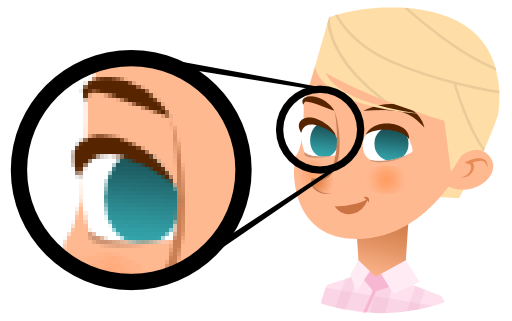
A bitmap
The downside? If you zoom in really close, the image gets blocky. This is called becoming pixelated.
Because the computer has to save data for millions of pixels, bitmap file sizes can get quite large.
Vector Graphics
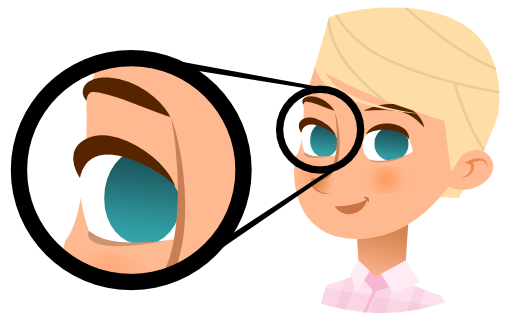
A vector
The massive advantage? You can zoom in forever and the image will never get blocky. The computer just redraws the maths at a larger scale!
Logos, fonts, and cartoon animations are usually vectors.
Turn these words into pictures! Draw 3 small doodles, icons, or emojis that sum up the main ideas. You don't need to be an artist—making it visual helps your brain remember!

Task 1 The Zoom Investigation
It is time to see the difference with your own eyes! You have been given two images of a flower that look identical, but they are built completely differently.
1
Get Organised!
Download BOTH flower.png and flower.svg and save them in your documents.
Open a new tab in your browser.
Drag and drop the
flower.pngDrag and drop the
flower.svg2
The Zoom Test
Go to the PNG tab. Hold down the Ctrl key and press the + key 5 or 6 times to zoom right in. Look closely at the curved edges of the flower petals.
Now switch to the SVG tab and do exactly the same thing.
3
Ask the AI!
Still confused about why one looked blury and the other one didn't? Ask our AI assistant to explain the magic behind it all. Click the carefully crafted prompt to ask the expert...

Act as a computer science teacher. Explain why an SVG file never loses quality when you zoom in, but a PNG file gets blurry. Explain this to a 12 year old. Use an enthusiastic tone. Keep the answer under 60 words. NO intro, NO outro, NO deviation from the topic, NO follow-up questions.
Outcome: You should be able to clearly explain to your partner why the SVG stayed sharp and the PNG became a blocky mess of pixels!

2. Hacking the Matrix: Inside an SVG File
Because Vector graphics are just mathematical instructions, the file itself is actually just a text document full of code! The most common vector format on the web is SVG (Scalable Vector Graphics).
An SVG file is written in a language called XML. It looks a lot like HTML. Because it is just text, you don't even need expensive art software to draw a vector—you can literally 'code' a drawing using a simple text editor like Windows Notepad!
Comments in Code
When programmers write complex code (or complex drawings!), they often leave notes for themselves or other humans. These are called comments. The computer completely ignores them when it runs the file.
In an SVG file, a comment looks like this:
<!-- PETAL -->

Become the Quiz Master! Write down three really tricky multiple-choice questions based on these notes. Make the wrong answers sound plausible to try and catch out your classmates.

Task 2 Hack the Flower
You are going to change the colour of the flower without using any paint tools. You are going to hack the raw code!
1
Get Organised!
Right-click on your
flower.svgChoose 'Open With' and select a plain text editor (like Notepad++ on Windows or TextEdit on Mac).
You will see a wall of code! Don't panic.
2
Find the Target
Look through the code to find the comments. They tell you which part of the code draws which part of the image.
Just below each comment, you will see a
<g><path>Look for the setting that says
fill:#e17a5b;3
Make the Hack
Change the 6 letters/numbers inside the quotes to a new hex code. For example, try changing it to
#FF0000#0000FFDo not delete the hash
#Save the file by choosing File + Save or hit CTRL + s.
Go back to your browser and refresh the page (F5). Did the flower change colour?
Outcome: A successfully modified SVG image saved as
flower-edit.svg3. Back to Bitmaps: The Art of the Pixel
We've spent a lot of time on vectors, but Bitmaps are still incredibly important. If you want to show a realistic photograph with millions of tiny shadows and colour blends, a vector simply cannot do it. You need a pixel grid for photos.
However, sometimes people use bitmaps deliberately to create blocky, retro artwork. This is called Pixel Art. It requires placing individual square pixels on a very small grid to create characters or items, exactly like game designers did in the 1980s!

Cover your notes right now! Scribble down absolutely everything you can remember on a blank page. Once you're stuck, uncover your notes and use a different coloured pen to fill in the gaps.
Task 3 Pixel Perfection
It is time to unleash your inner Game Designer and work with pure bitmap pixels!
1
Get Organised!
Open a new tab in your browser and load up the Computing Cafe Pixel Art Editor
2
The Creative Brief
Your challenge is to draw an item that could be used in a retro video game. It could be a treasure chest, a key, a heart, or an alien. There are some examples for you to try at the bottom of the page.
Notice how hard it is to draw a perfect circle when all you have are tiny square boxes!
3
Export your Asset
Once you are finished, use the menu to export or download your image.
Ensure you save it as a .GIF file (a bitmap format!).
Outcome: A custom piece of retro pixel art, saved as a PNG bitmap file, demonstrating your understanding of grid-based digital images.



Last modified: May 11th, 2026

















