




lesson 3.3.3 gathering assets
Filming and Sourcing Your Multimedia Content

Welcome to the production phase! Today, you transition from being Planners to Content Creators. You have your storyboard ready (if you don't, you can use mine), but now you need the actual ingredients to make your EcoSchools video a reality. We are going to become expert asset hunters, searching the web for the best free images, sounds, and graphics to spread the message about ecological behaviour. But beware - you cannot just take anything you see online! We will learn how to source ethical, copyright-free media, organise our files like true professionals, and even discover the hidden treasure trove of assets waiting for you right inside Microsoft PowerPoint. Let's start gathering!
Learning Outcomes
The Building Blocks (Factual Knowledge)
Recall the definition of a digital asset and name different types of multimedia files used in video production.
Describe the concept of copyright and why it is illegal to use someone else's work without permission.
Describe the importance of using a logical folder structure and representative filenames to manage assets.
The Connections and Theories (Conceptual Knowledge)
Analyse a web search to determine which images and audio files are legally safe to use for a project.
Evaluate the suitability of different multimedia assets against the target audience and success criteria of the EcoSchools brief.
The Skills and Methods (Procedural Outcomes)
Apply effective search techniques to source copyright-free images, audio, and icons from the web and within Microsoft PowerPoint.
Apply ethical digital practices by logging and referencing the sources of all downloaded multimedia assets.
Create a structured folder hierarchy to save and organise project assets logically.
Digital Skill Focus: Today you will focus on managing and using information ethically by sourcing copyright-free assets and correctly referencing their original creators in an asset log.
Digital Assets and Ethical Consumption
Before we can assemble our EcoSchools video, we need to gather our ingredients. In multimedia production, these ingredients are called digital assets. A digital asset is any file that adds visual or auditory content to your project. This includes images, video clips, sound effects, background music, illustrations, icons, and even specific fonts.
However, as digital creators, we must practice ethical digital consumption. You cannot simply use any image or song you find on the internet.
Understanding Copyright
Copyright is a law that automatically protects a creator's work from being copied, used, or distributed without their explicit permission. Using copyrighted material without asking is a form of stealing. Instead, we look for assets released under Creative Commons licences or those marked in the public domain. These allow you to use the assets for free, provided you follow the rules - which usually just means giving the original creator credit by stating their name under the image!
The Asset Collection Log
To prove you are using assets legally, professional video editors use an Asset Collection Log. This is a simple table where you record the filename, a brief description, the original source URL (website address), and the creator's name. This makes creating your final credits screen incredibly easy!
File Management
So you don't lose any of your hard work or the assets you have collected, you must use a logical folder structure to save and organise all your files. This is even more important if you are working in a team - there is nothing more frustrating than a disorganised folder!
Turn these words into pictures! Draw 3 small doodles, icons, or emojis on your whiteboard that sum up the main ideas of Assets, Copyright, and Creative Commons. You don't need to be an artist - making it visual helps your brain remember!

Task 1 Log It or Lose It!
Before we start grabbing cool pictures and sounds, we need a place to track them and a place to save them. Good project managers always reference their sources to avoid copyright trouble!
1
Get Organised!
Create a new folder in your documents called
EcoSchools ProjectInside that folder, create two sub-folders. Name one
ImagesAudio2
Build the Log
Open a new, blank word processed document.
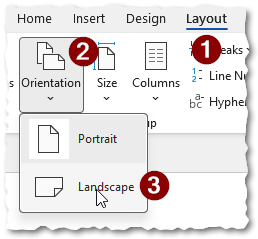
Rotate the document so that it is in landscape orientation. In Microsoft Word:
Create a table with five columns (Insert > Table). Give your columns these exact headings:
Filename: The filename of the asset you saved.
Asset Type: The type of asset - image, audio, video, text.
Description: Write a quick description of the asset.
Source: The website address or application you got the asset from.
Creator: The person or organisation who made the asset.
License: The restrictions on how you can or can't use the asset.
When you've finished, the top of the table should look like this...

3
Save the Log (where you can find it)
Save this file into your
EcoSchoolsecoschools asset collection logOutcome: A formatted, saved digital table ready to record the source details of all your multimedia assets.

Hunting and Gathering: Where to look and how to save
Now that your log is ready and your folder structure is created, it is time to collect the assets for your EcoSchools video about ecological behaviour and reducing e-waste.
File Management and Representative Filenames
When you save an image or an audio clip, it will often have a messy, random name like
IMG_99482.jpgdownload.mp3global-warming.jpgupbeat-intro-music.mp3We've already created a nice folder structure so make sure that you save all your files in the correct place so they are easy for you (and potentially other team members) to find later.
Sourcing Assets from the Web
Many free resource websites offer fantastic images and sounds. You do not need to create accounts or sign up for shady downloads. The task instructions give you detailed guidelines on how to find and save images from the web without all the hassle.
The Secret Weapon: Microsoft PowerPoint
Did you know you already have thousands of premium, copyright-free assets on your computer? Microsoft PowerPoint has a massive built-in library of stock images, cut-out people, icons, illustrations, and even background videos!
Because we will likely be using PowerPoint to actually create and edit our final video, gathering assets directly inside a blank presentation is incredibly efficient.
You can click Insert > Pictures > Stock Images to explore.

Cover your notes right now! Scribble down the steps required to create a logical folder structure to store your assets. Once you're stuck, uncover your notes and fill in the gaps.

Task 2 The Great Eco-Asset Hunt
It is time to collect the media you need to build your EcoSchools video! Remember our theme: ecological, energy saving behaviour in school.
1
Get Organised!
Make sure your asset collection log is open and ready.
If you haven't got your storyboard to hand, use this one...
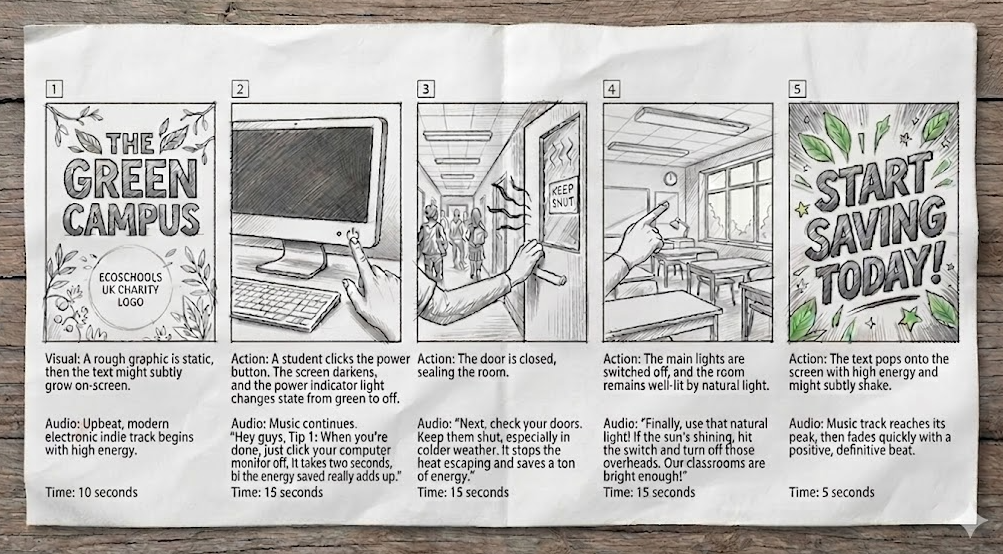
A EcoSchools Video Storyboard
2
Get your story straight!
Before you start looking for any assets for your video, you need to understand why copyright is important and how to avoid breaking copyright law. Click on the carefully crafted AI prompt to ask our digital research assistant for help...

Act as a copyright expert. Explain why copyright is important and what Creative Commons (CC) means. Keep the explanation under 100 words. The audience is a 12-year-old Key Stage 3 student. Use an encouraging tone. Use exactly two bullet points. NO intro, NO outro, NO deviation from the topic, NO follow-up questions.
3
Raid the PowerPoint Library
Open a blank Microsoft PowerPoint presentation.
Go to Insert > Pictures > Stock Images.
Search for icons and images related to 'ecological damage', 'energy saving tips', and 'ecofriendly behaviour'. If you find something you like, insert it onto the slide. You can then right-click the image and select Save as Picture... to put it directly into your
Images1
Rename your asset
2
Save it in the correct folder
3
RECORD THE ASSET IN YOUR ASSET COLLECTION LOG
4
Search the Web with Advanced Tools
Need something specific like an image of an "rainforest" which you can legally use without restriction? Use an advanced web search.
1
Open up Google Images.
2
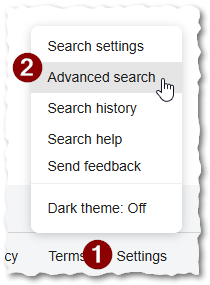
Click on the Settings button at the bottom right followed by Advanced Search.
3
Look carefully through the options on this form.
4
Enter the search term ("rainforest") in the top box, All of these words.
5
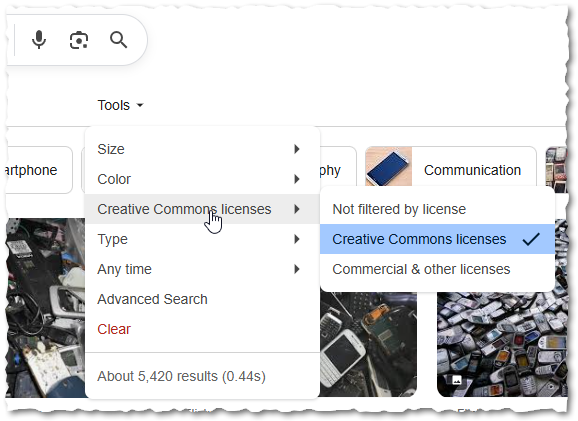
IMPORTANT! Scroll to the very bottom of the form and make sure to change the Usage Rights to Creative Commons licences.
6
Click the Advanced Search button. You will be taken to the familiar Google Images search results page.
7
If you wish to make further changes to the image requirements, the same settings are now available in the Tools menu near the top of the page
8
Click on the image you want to view it in the right side panel.
9
Right-click on the image in the side panel and select Open image in new tab.
10
Right-click the image in the new tab and select Save image as... to ensure you get the high-quality, original version rather than a blurry thumbnail.
1
Rename your asset
2
Save it in the correct folder
3
RECORD THE ASSET IN YOUR ASSET COLLECTION LOG
5
What's that sound?
It's a bit trickier finding copyright free sounds but if you use a carefully crafted web-search, you might stumble across some...
Try searching for them carefully using safe search parameters: Search for Copyright Free Sound Effects
It's not as easy to download sounds - you generally have to use the websites tools to do it.
1
Rename your asset
2
Save it in the correct folder
3
RECORD THE ASSET IN YOUR ASSET COLLECTION LOG
5
Keep on 'til you get enough
Keep collecting assets - it's better to have too many that too few!
Outcome: A well-organised project folder containing appropriately named, copyright-free images and audio, with all sources fully documented in your Asset Collection Log.

Out of Lesson Learning


Last modified: May 19th, 2026

















